This Computer
Inside a project
Click a project on This Computer to open it. Along the top are All projects (to go back), the project's name, and a Keys button. Under that are the tabs.
| Tab | What it shows |
|---|---|
| Files | Everything in the project. You can read and edit it. |
| Dashboard | The project's own live page. See A project's dashboard. |
| Chats | Every chat you had about this project. |
| Computer Use | When Atlas used your screen for this project. See Let Atlas use your computer. |
Start from scratch projects have no Dashboard tab.
Files
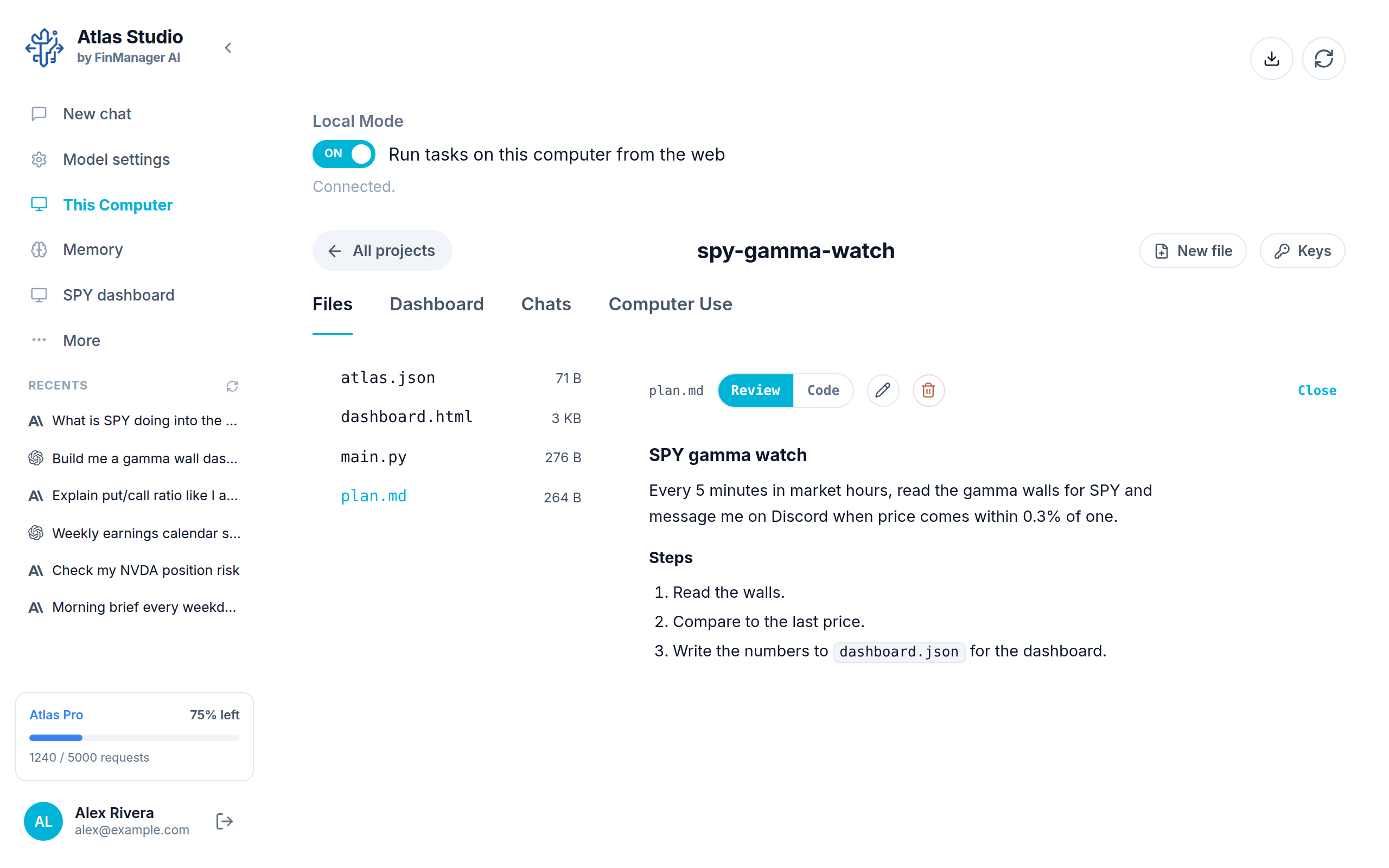
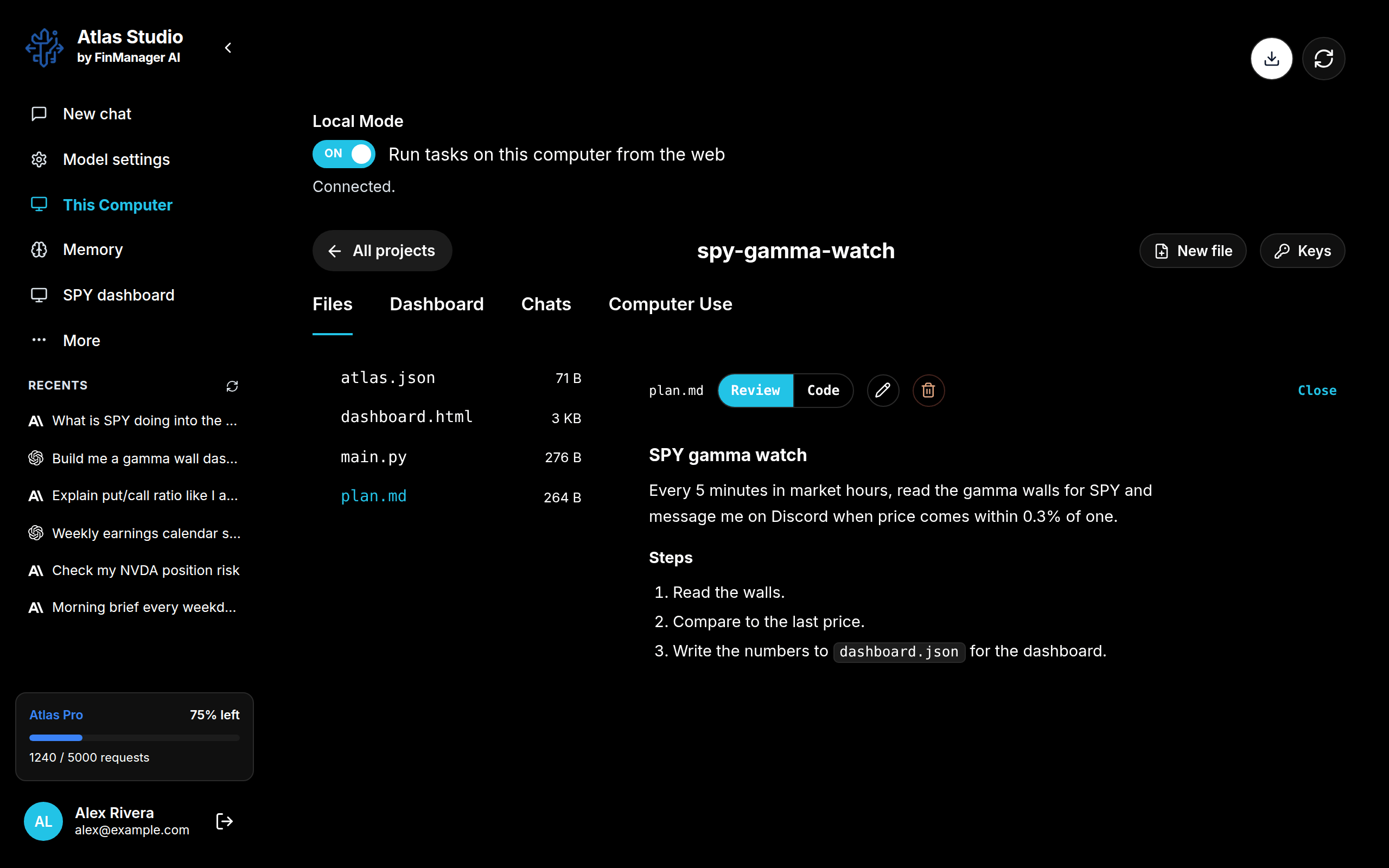
- Click a file to open it. Click a folder to open or close it.
- The pencil lets you edit the file. Save keeps your change, Cancel throws it away.
- The bin deletes the file (Atlas asks first).
- Notes (files ending in .md) open nicely formatted. Switch to Code to see the plain text.
- New file at the top makes a new one.
A few files you will often see:
| File | What it is |
|---|---|
| plan.md | What the project does, in plain words. |
| main.py | The steps the project runs. |
| atlas.json | When it runs (its schedule). |
| dashboard.html | Its dashboard page. |
You do not need to edit any of these yourself. Ask in a chat instead, for example "make it run every 10 minutes".
Chats
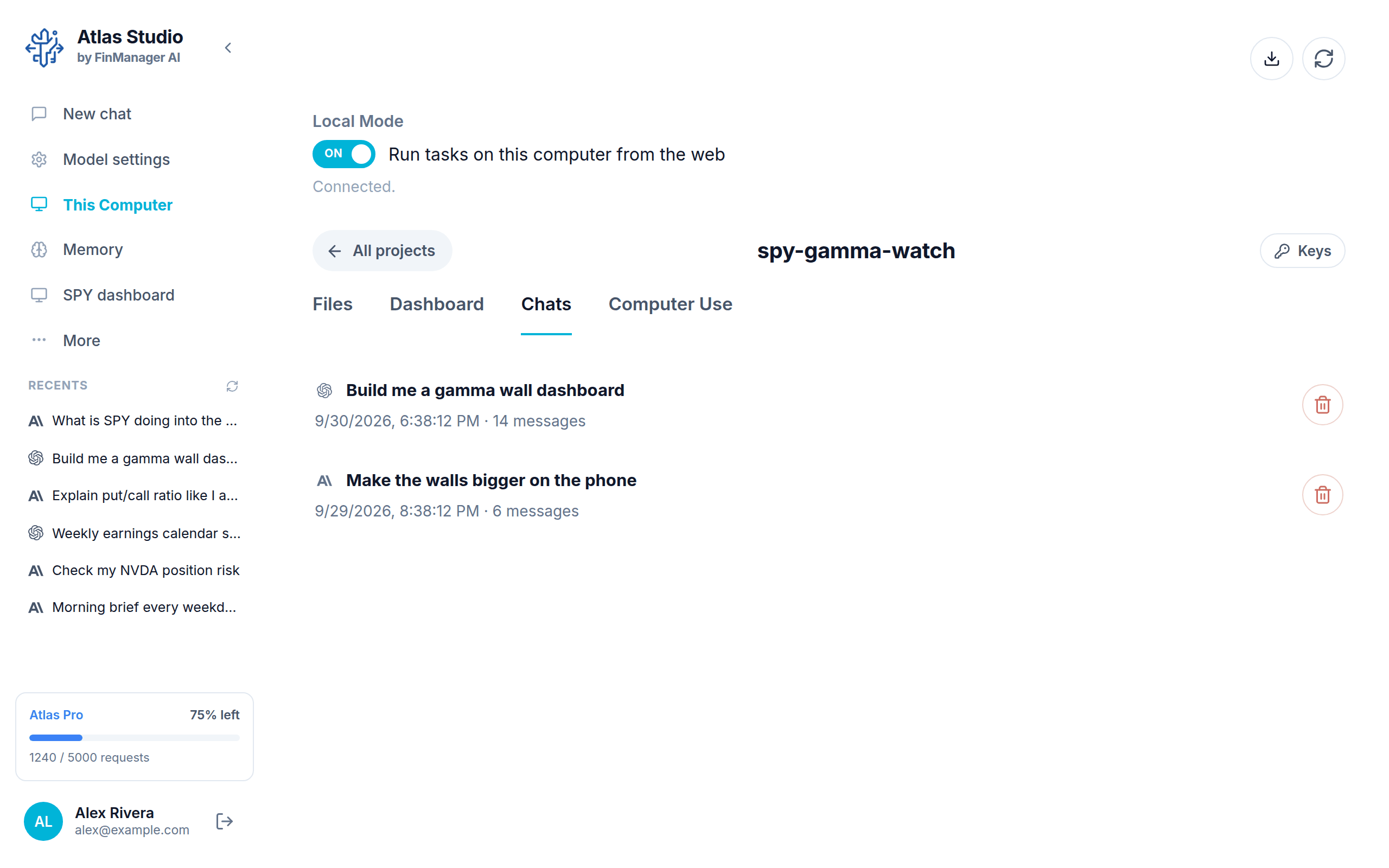
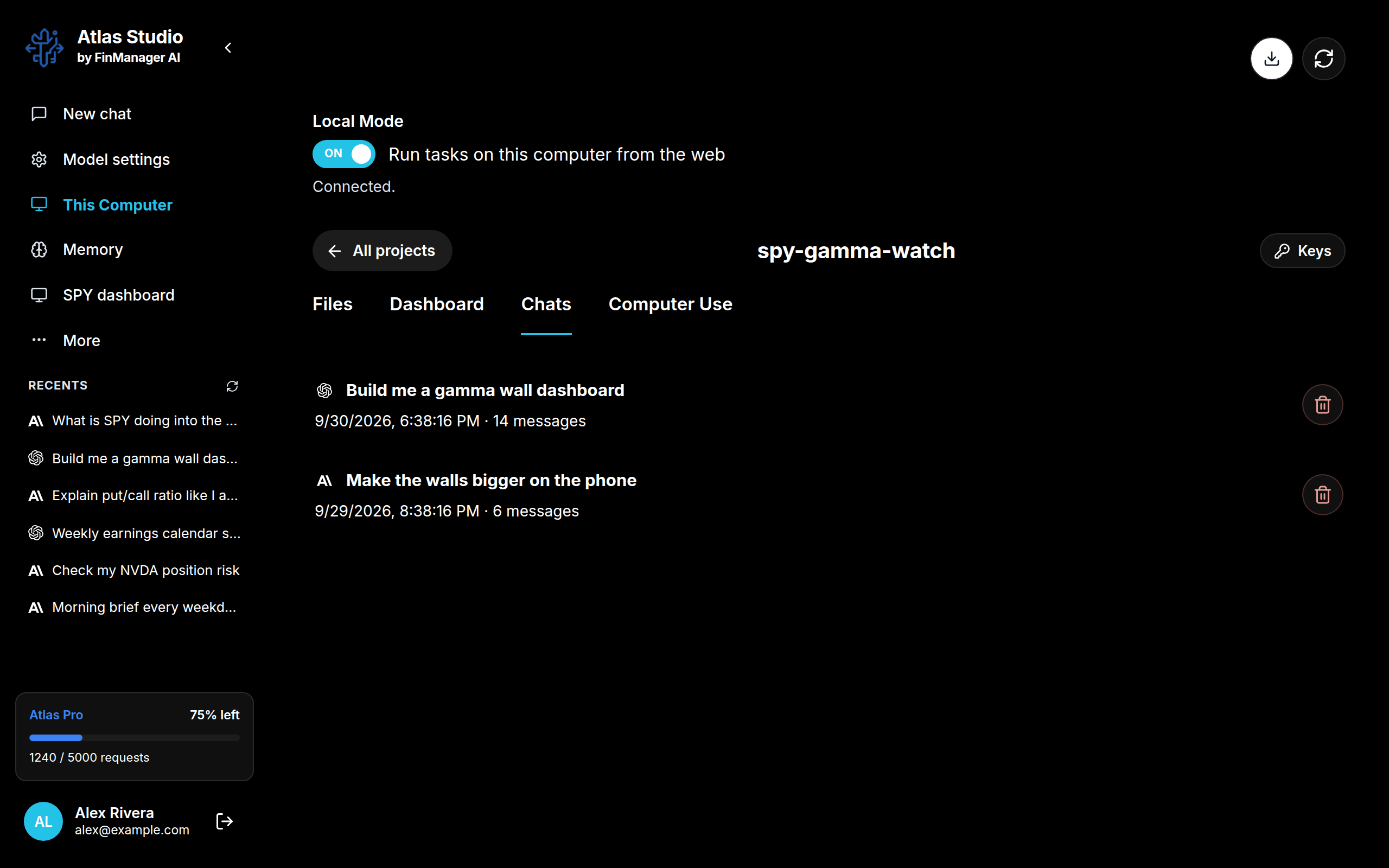
Click one to open it and carry on. The bin deletes it. Chats started on the web about this project show up here too.
Keys
Some projects need a key or password for another service, such as a Discord webhook. Press Keys to add them.
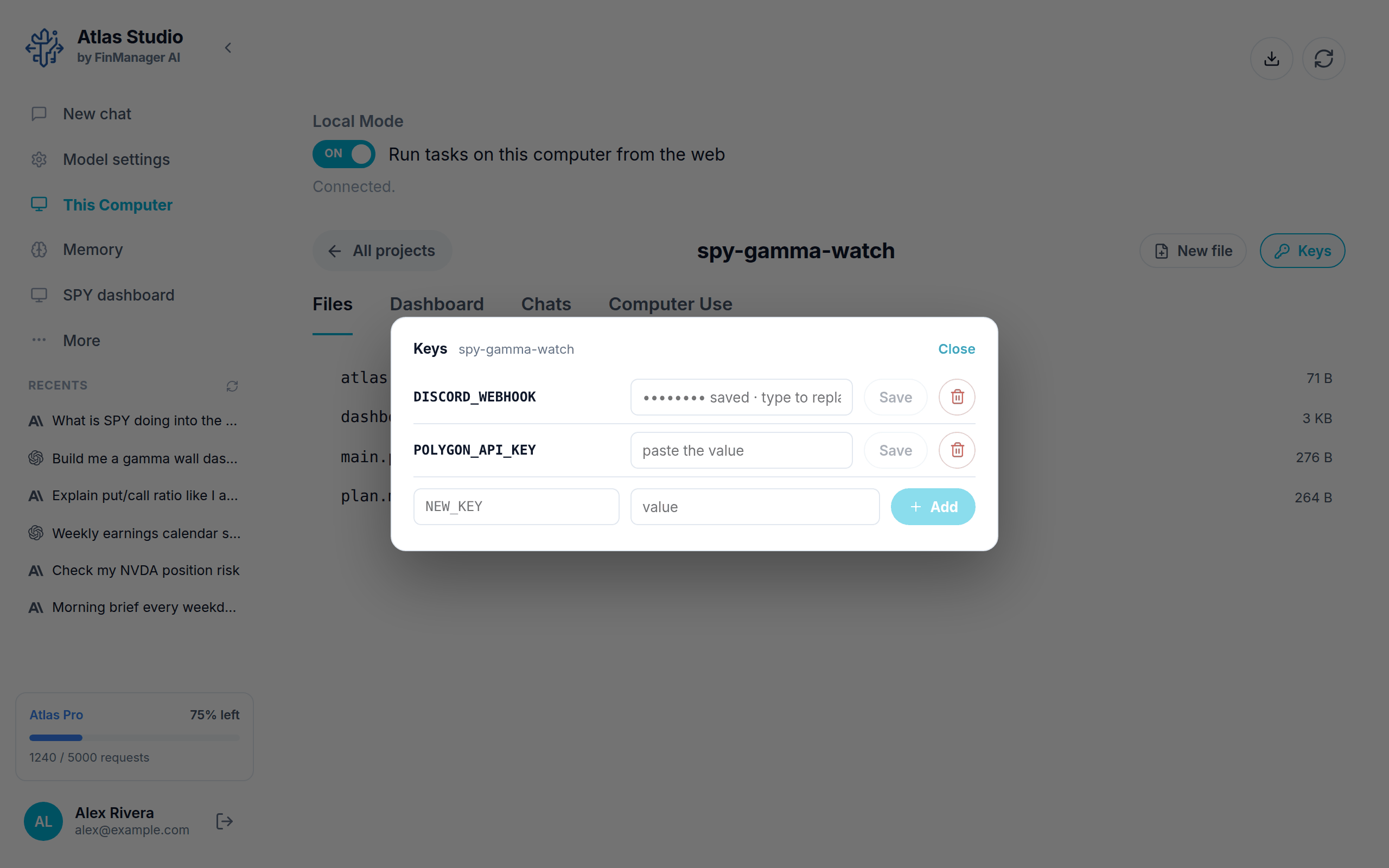
- Type the key's name and value at the bottom and press Add.
- To change one, type the new value over it and press Save.
- The bin removes one.
Keys stay on your computer. Once saved, a key is never shown again, and it is never shared, even if you share the project.