Models on this computer
You can run free, open models on your own computer, with no account and no internet needed once they are downloaded. Atlas uses one of two free programs to do it: Ollama or LM Studio.
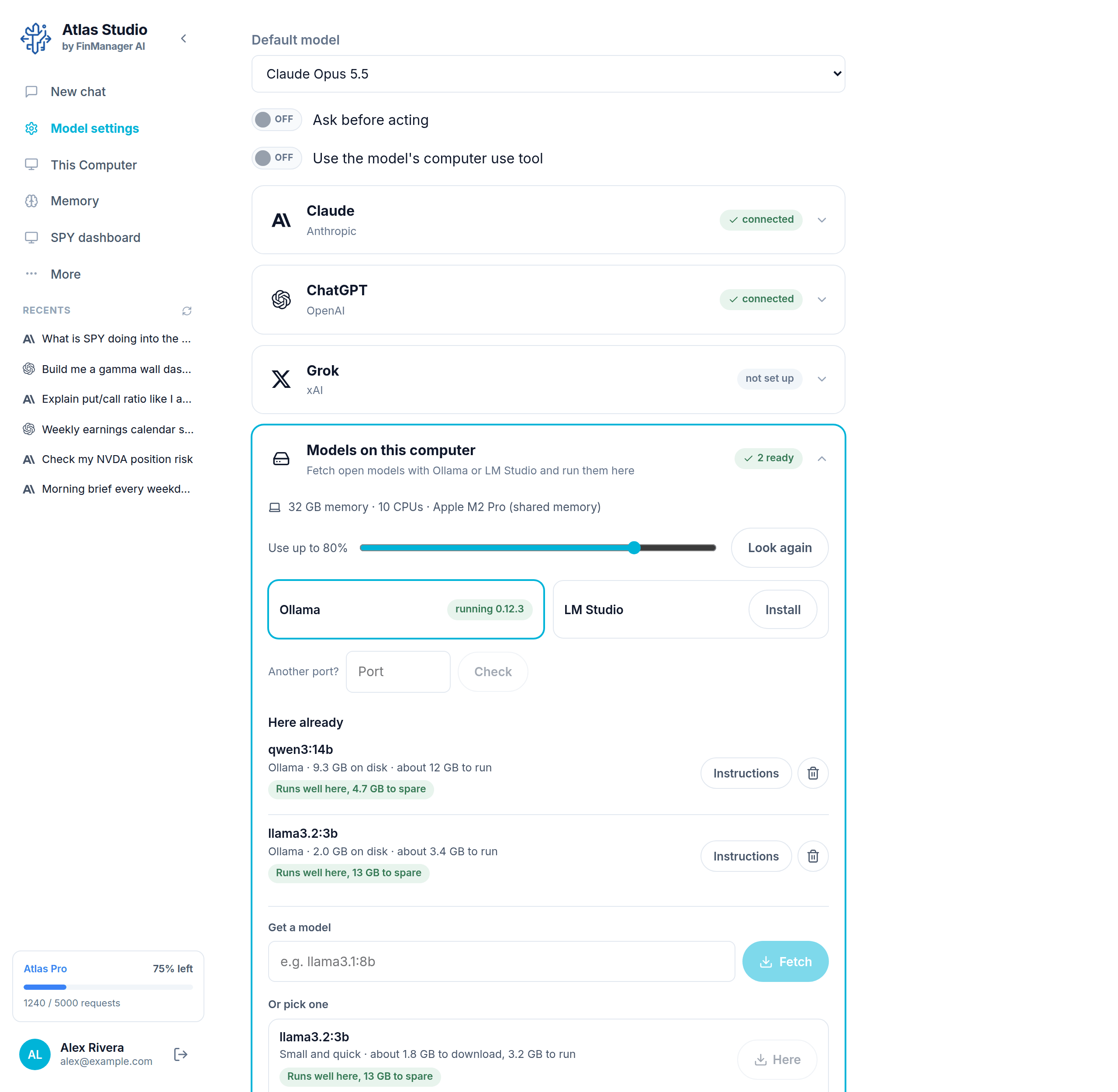
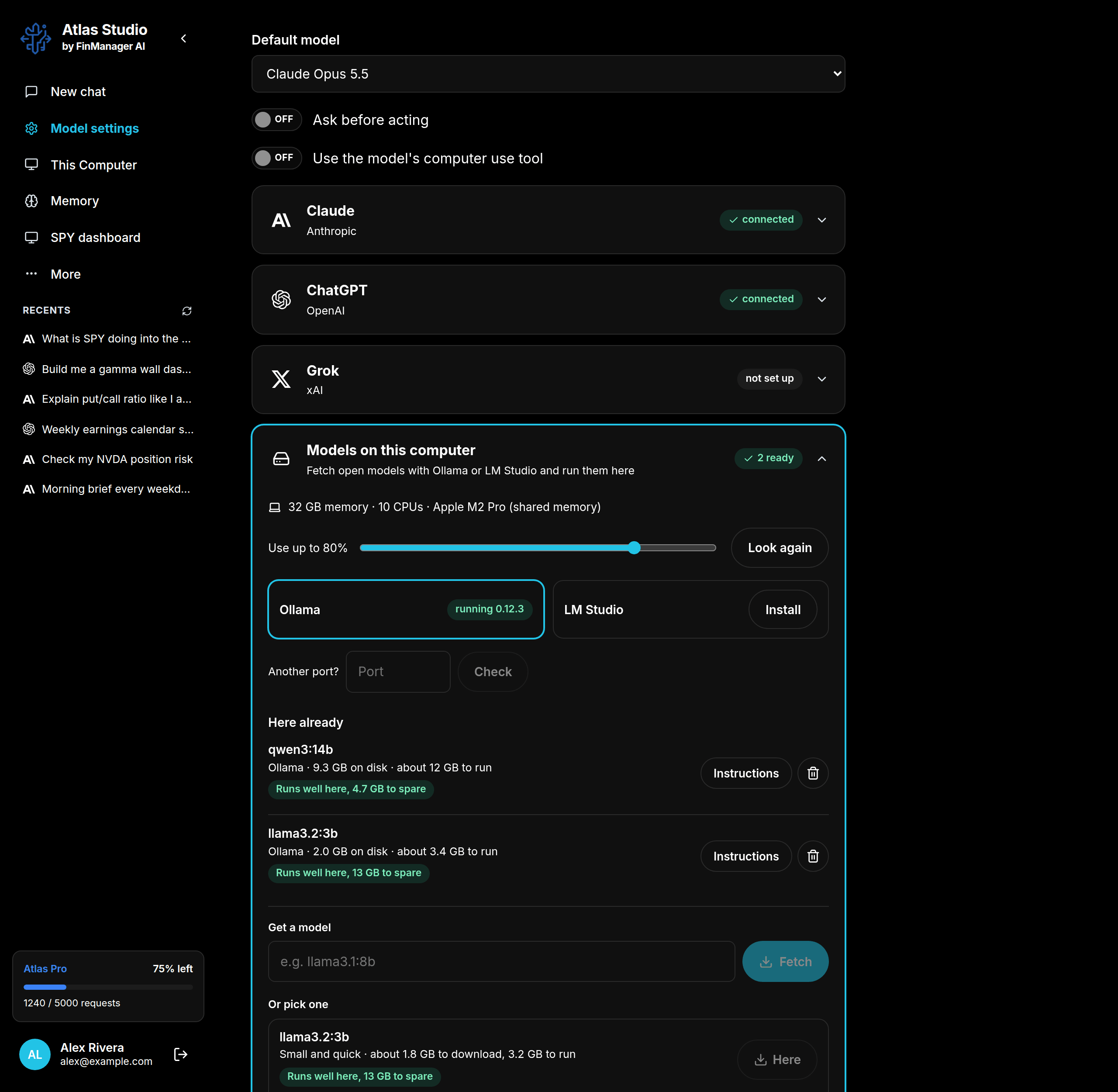
Open Model settings and click Models on this computer.
Step 1: get Ollama or LM Studio
At the top you see what your computer has (memory, processor, graphics card). Below that are two cards, Ollama and LM Studio:
- Install puts it on your computer for you.
- Start turns it on, if it is installed but not running.
- running means it is ready.
Step 2: get a model
Type a model name under Get a model and press Fetch, or pick one from the Or pick one list. Not sure? llama3.1:8b is a good place to start, and llama3.2:3b is small and quick.
Before you download, Atlas tells you how big it is and how well it will run on your computer. Fetch then does everything for you: downloads it, sizes it for your computer, tests it and adds it to the chat's model list.
Will it run well?
Each model shows a coloured tag:
| Colour | Means |
|---|---|
| Green | Runs well here. |
| Amber | Runs, but slowly. |
| Grey | Too big for this computer. |
Other buttons
- Use up to ...% is a slider for how much of your computer a model may use. Lower it if your computer gets slow while a model is answering.
- Instructions gives a model standing orders it follows in every chat, for example "always answer in short bullet points".
- The bin removes a model to free up space (Ollama only).
- Look again re-checks your computer, for example after installing Ollama.
Using it
Your downloaded model now shows in the chat's model list by its name. Pick it like any other. See Change the model.