Let Atlas use your computer
Atlas can use your screen, mouse and keyboard to do things for you, like filling in a form or clicking through an app. It is off until you turn it on.
Turning it on
- Open a project on This Computer and click the Computer Use tab.
- Turn on Let an agent use this computer.
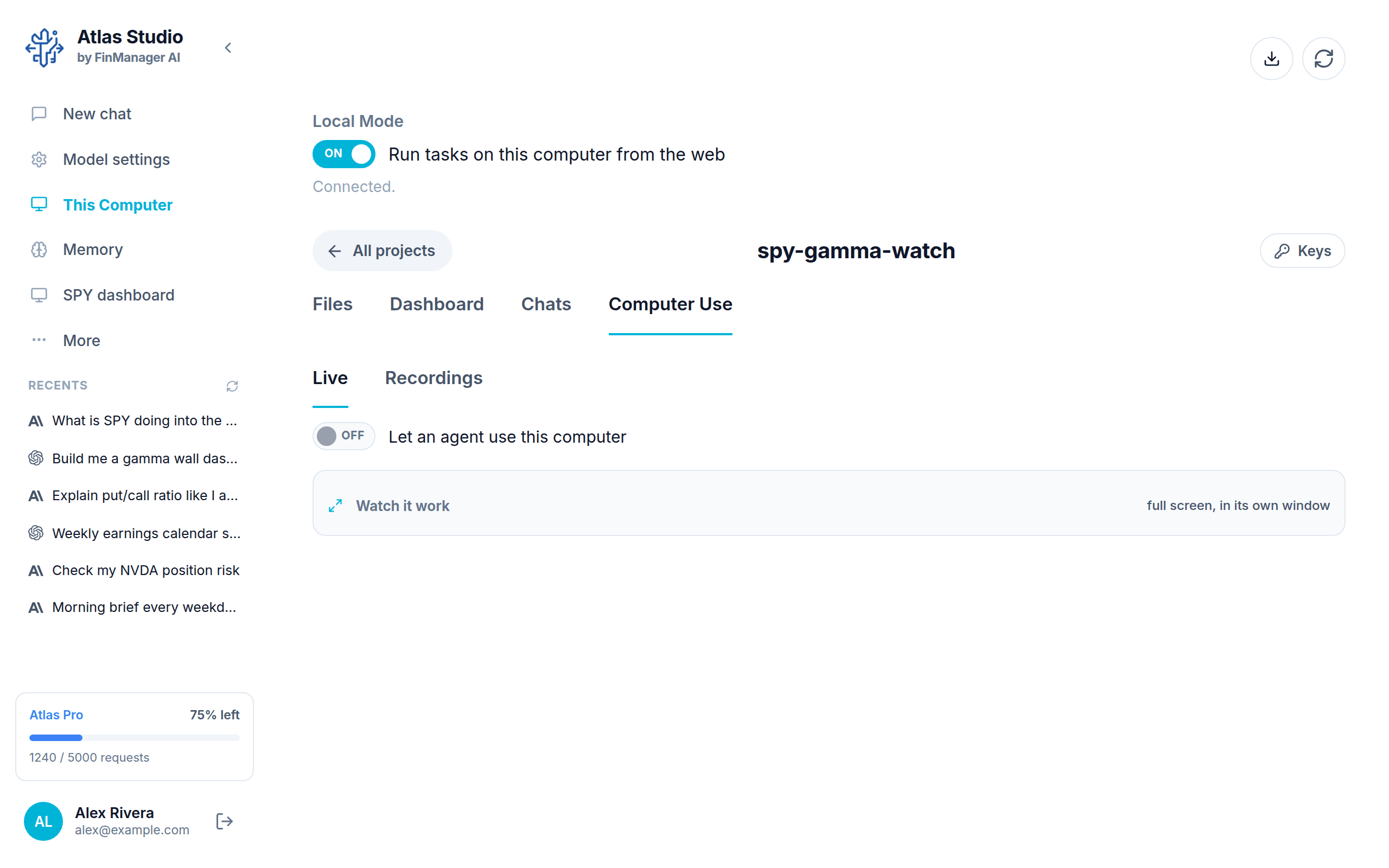
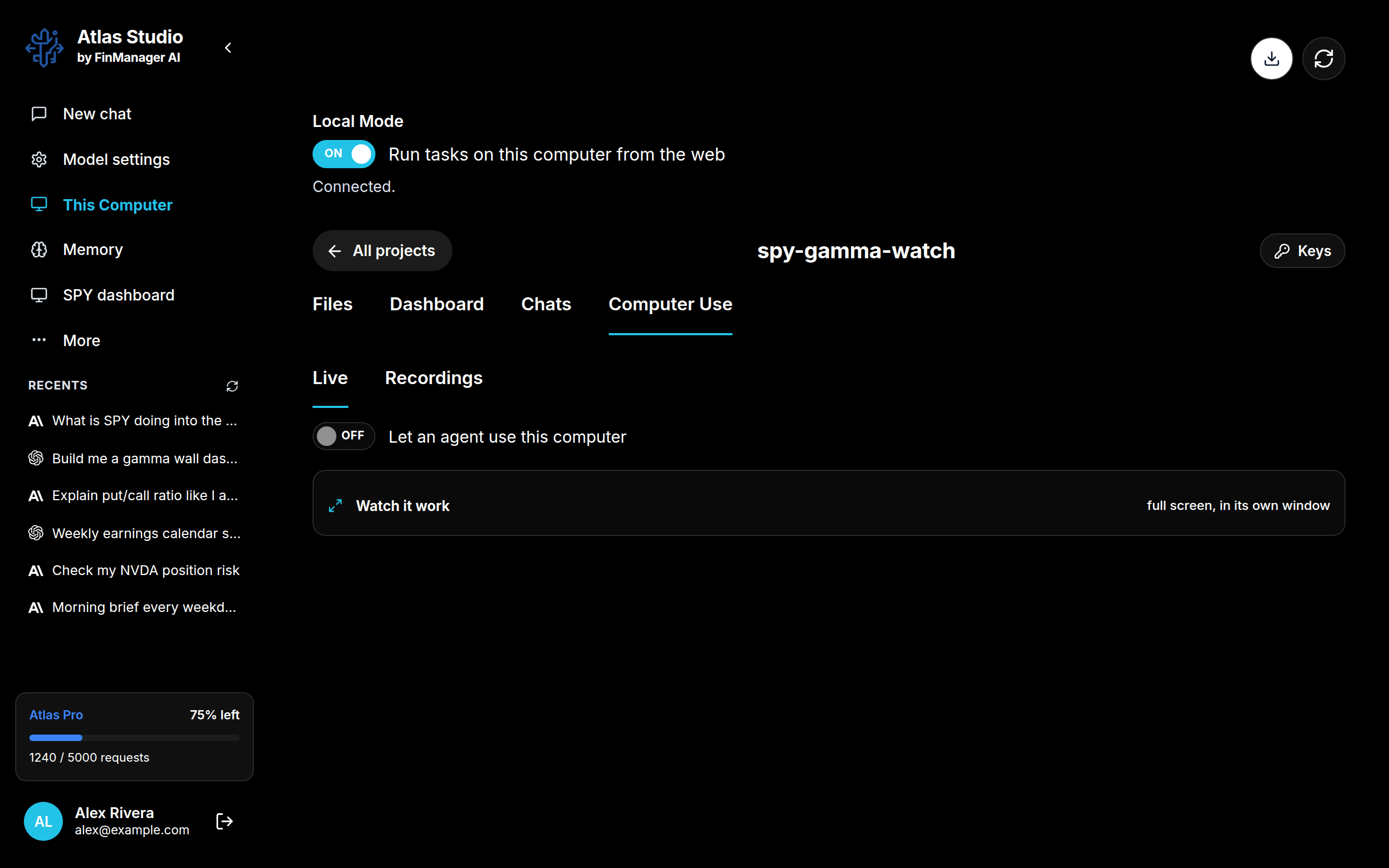
The first time, Atlas gets your computer ready. This can take 30 minutes to an hour, and you can leave it running. If it says your computer needs Python, install Python 3 from python.org and turn the switch on again.
On a Mac, the Mac asks you to allow Screen Recording for Atlas Studio. Allow it so Atlas can see and record the screen.
The switch is for the whole computer, not just this project.
Watching it work
- Watch it work opens a big window showing the screen, with a list of each thing Atlas did beside it ("Clicked Submit", "Typed 12 characters"). What it types is never shown.
- If you have two screens, a small bar floats on the other screen while Atlas is working. It has a Stop button and Watch from your phone.
- With more than one screen, Work on lets you choose which one Atlas uses.
Stopping it
Press Stop on the floating bar, or stop the chat that asked for it. Moving the mouse yourself makes Atlas pause and wait until you are done.
Recordings
Every time Atlas uses your computer, it keeps a recording and a list of what it did. Find them under Computer Use → Recordings.
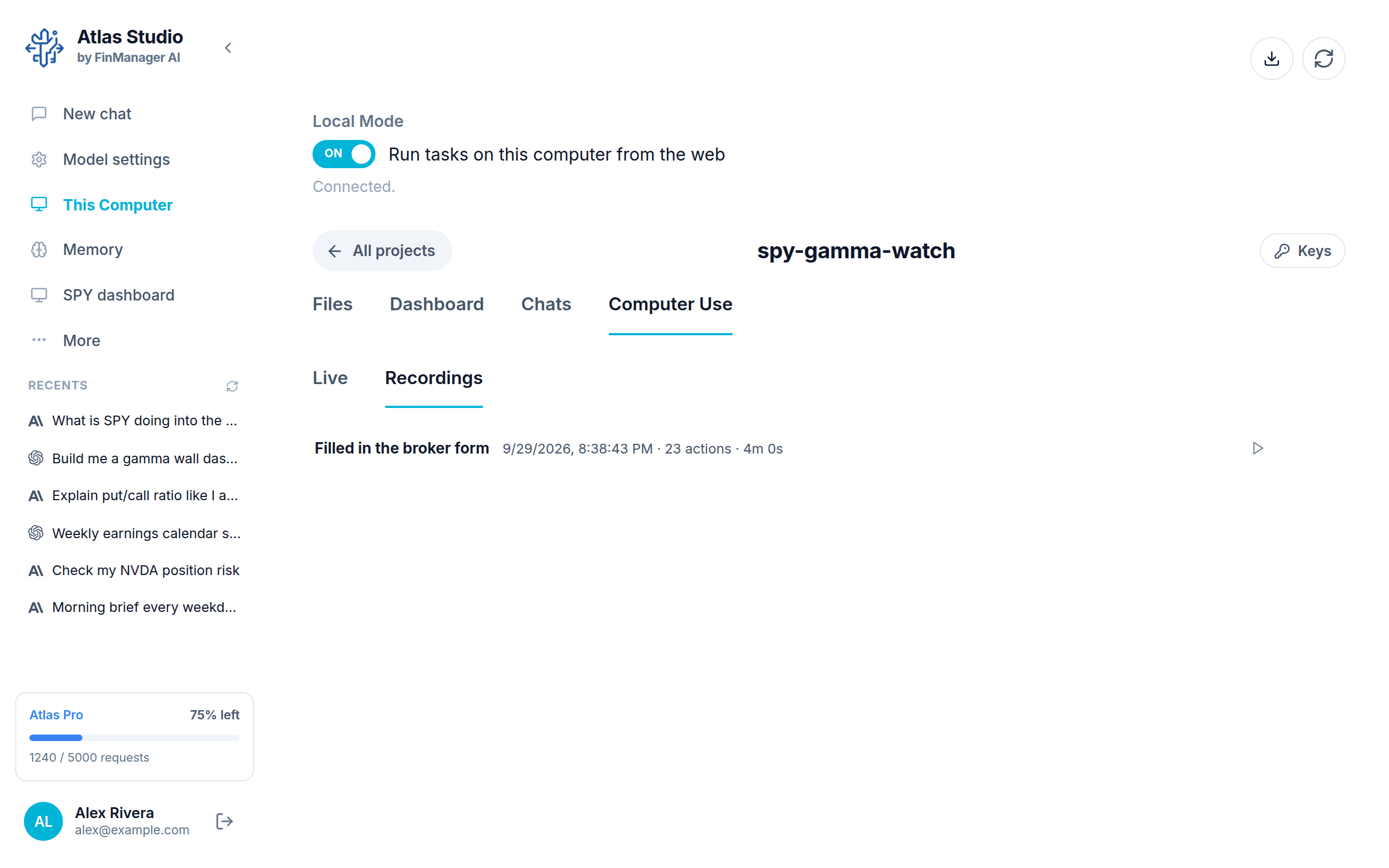
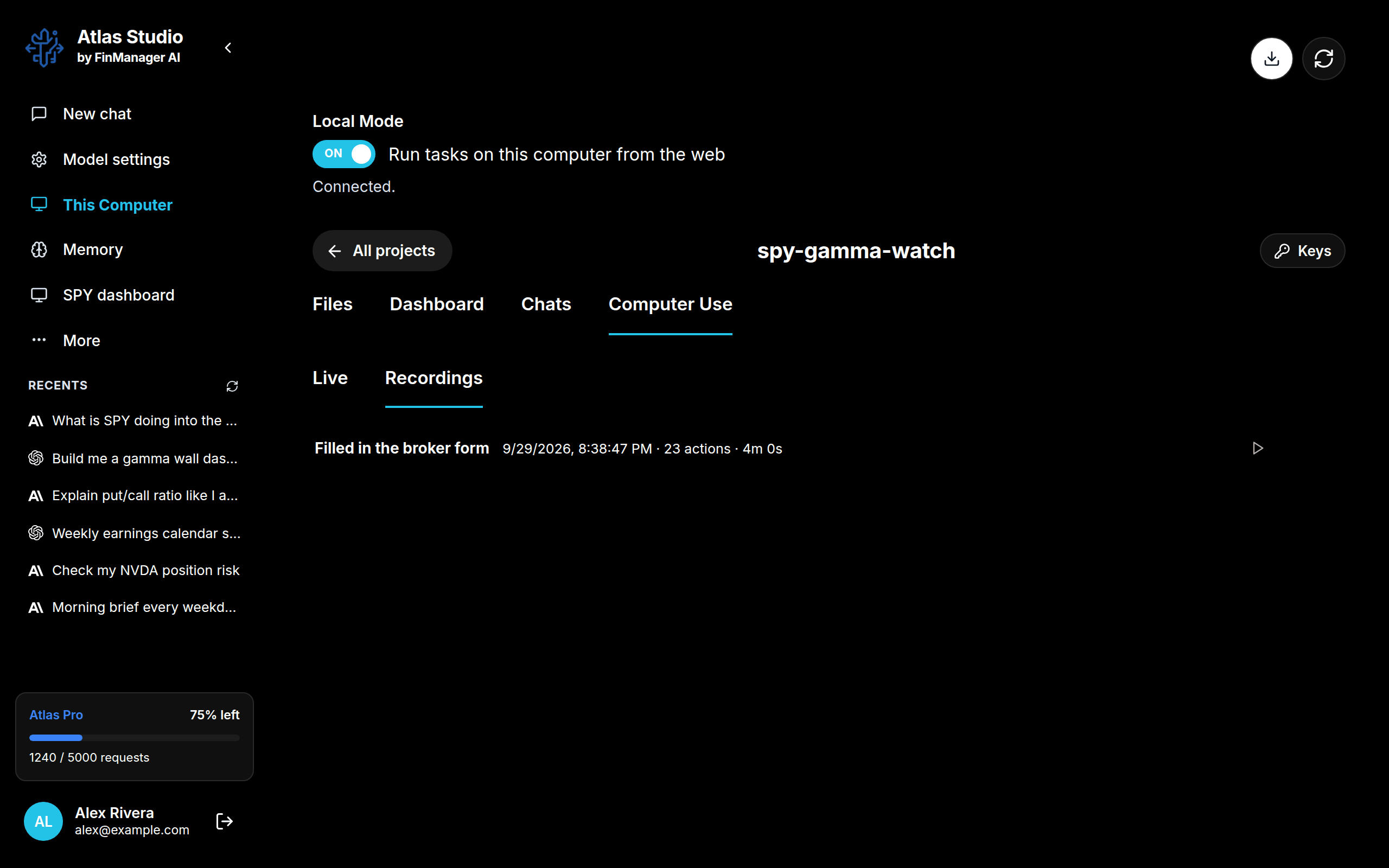
- Click one to play it back.
- The pencil gives it a name. The bin deletes it (straight away).