Connect your first model
Atlas Studio does not have its own AI brain. It uses a model you already have, like your Claude or ChatGPT account. You connect it once.
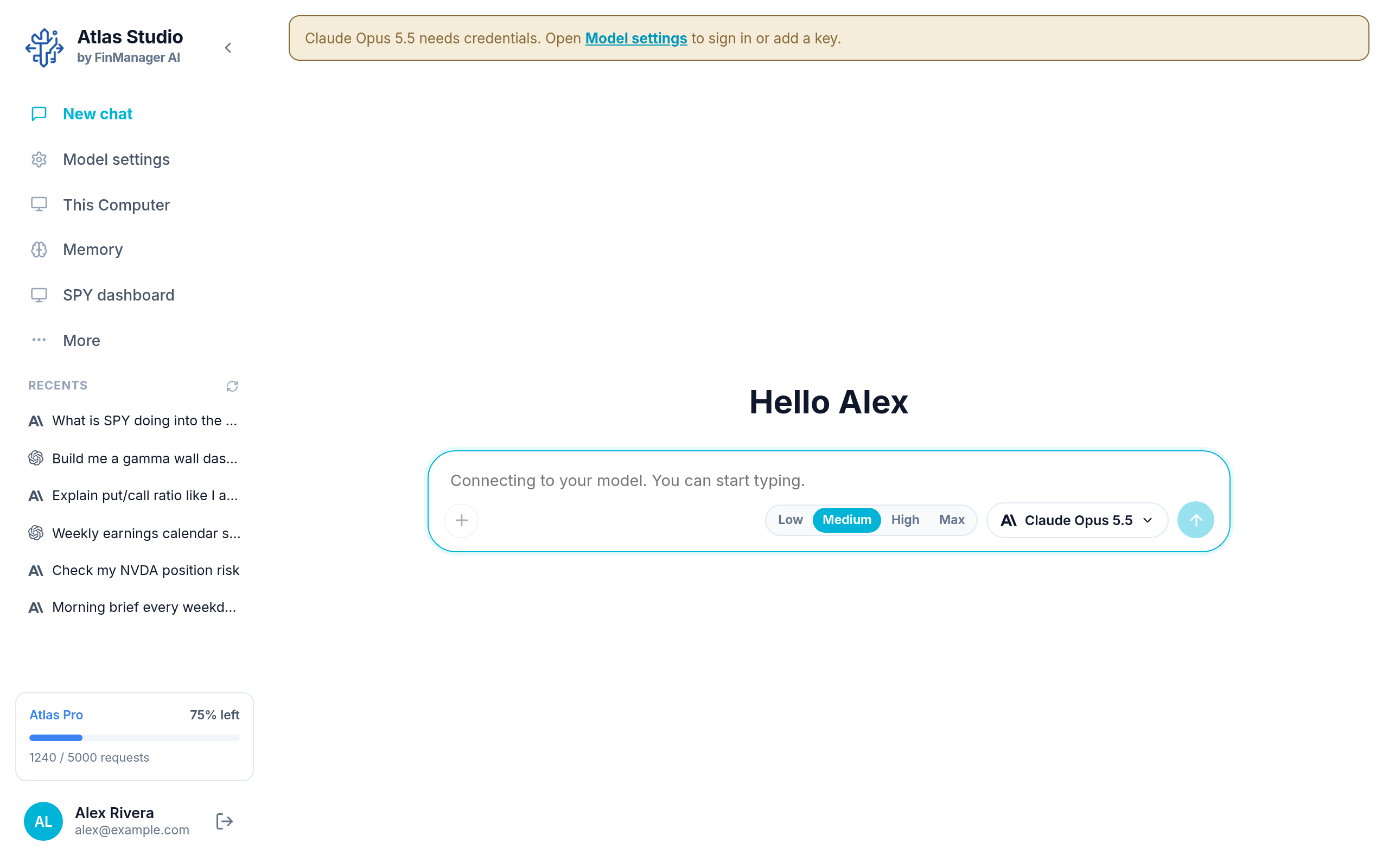
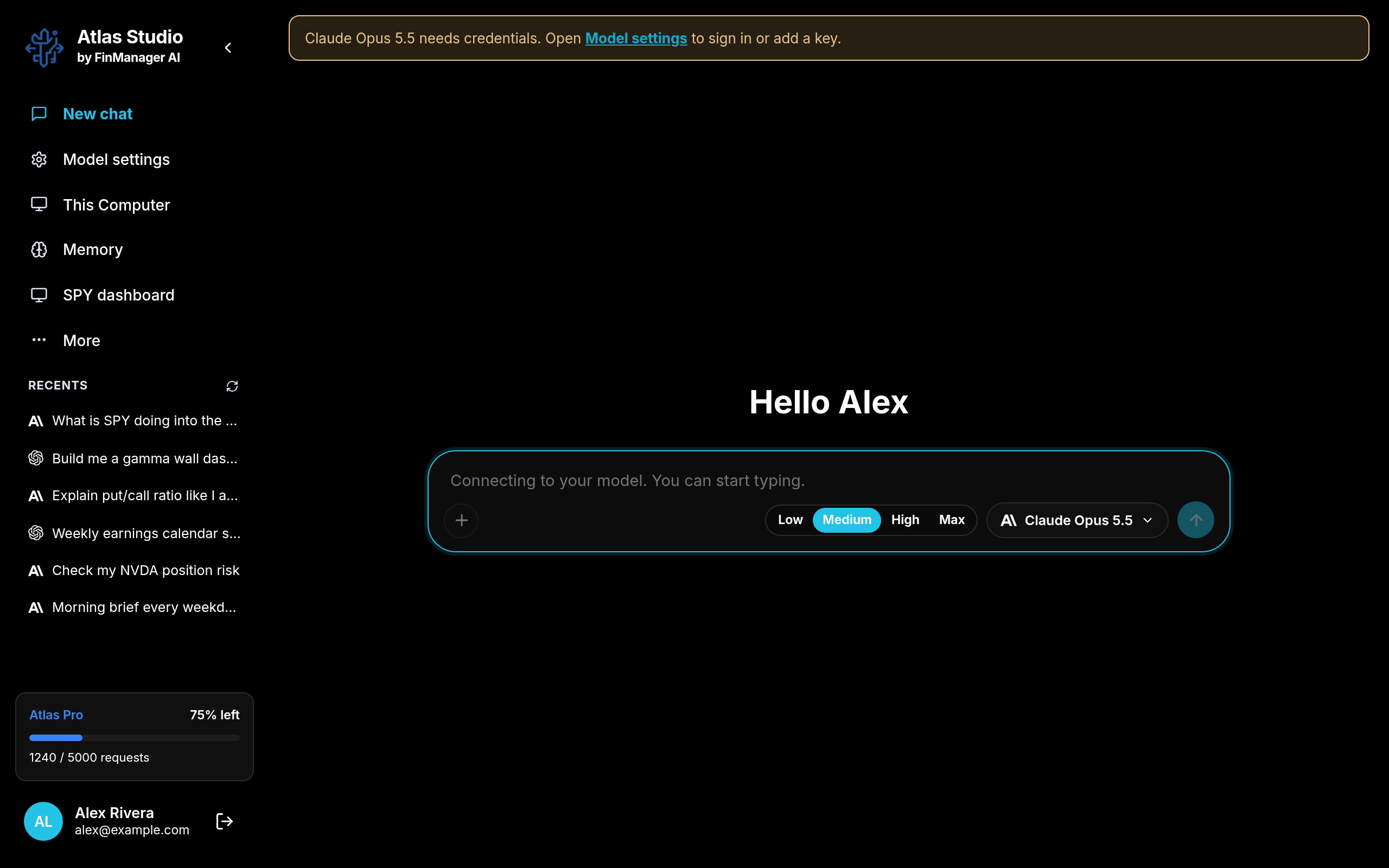
If no model is connected yet, the chat shows a yellow bar at the top: "Claude needs credentials. Open Model settings to sign in or add a key."
The easy way: sign in with your account
- Click Model settings in the left menu (or the link in the yellow bar).
- Click the model you have an account with, for example Claude or ChatGPT.
- Press Sign in to Anthropic (for Claude) or Sign in to OpenAI (for ChatGPT).
- Your browser opens. Sign in there with your normal account.
- Come back to Atlas Studio. The model now shows connected.
The other way: paste a key
If you have an API key from the company instead, open the same model, paste it in the box under or paste a key, and press Save key.
You can choose where the key is kept: OS keychain (your computer's own locked storage, recommended) or .env file (a plain settings file).
Pick the model a new chat uses
At the top of Model settings, choose one under Default model. Every new chat starts on it. You can still switch in any chat. See Change the model.
Want to run a model entirely on your own computer, with no account at all? See Models on this computer.