Chatting
The chat box
The box at the bottom of a chat is where you type. It has a few buttons around it.
Sending
- Enter sends your message.
- Shift + Enter starts a new line without sending.
- While the model is working, the send button turns into a stop button. Press it to stop the answer.
- If you send another message while it is still working, your message waits its turn and goes as soon as the current answer finishes.
The buttons, left to right
| Button | What it does |
|---|---|
| + | Attach files. See below. |
| Project name | Shows which project this chat is in. Click it to chat about a different project. |
| Low / Medium / High / Max | How hard the model thinks. Higher is slower but more careful. Changing it starts a fresh chat. |
| Model name | Which model is answering. Click it to change the model. |
| Arrow | Send. |
Attaching files and pictures
There are three ways:
- Press + and choose files.
- Paste a picture or screenshot straight into the box.
- Drag files from your computer onto the box.
Pictures and PDFs show as small previews. Click one to see it bigger; from there you can Copy image or Save it. Click the small × on a preview to remove it before you send. Pictures are shown to the model, so you can ask things like "what does this chart say?".
Shortcuts inside the box
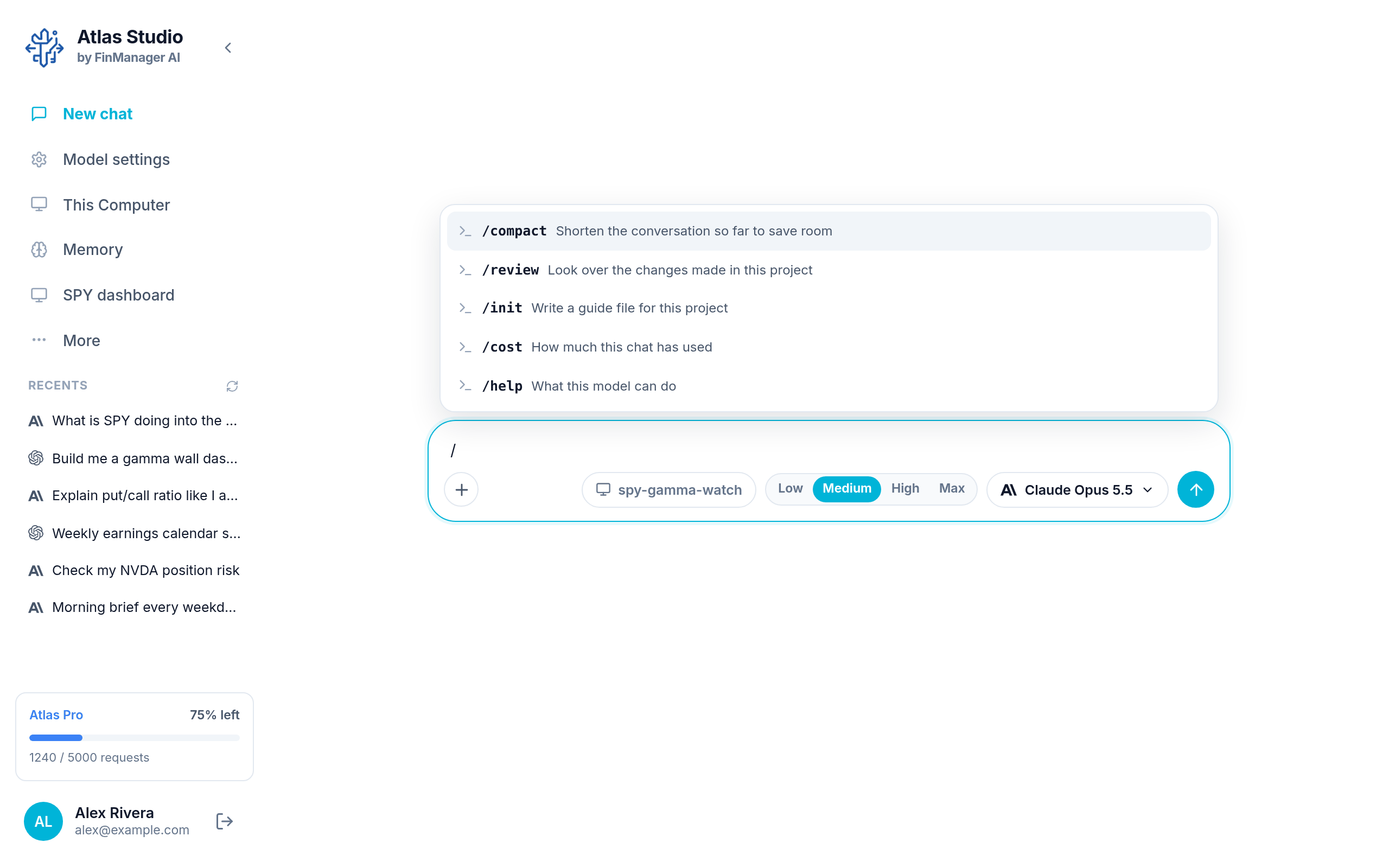
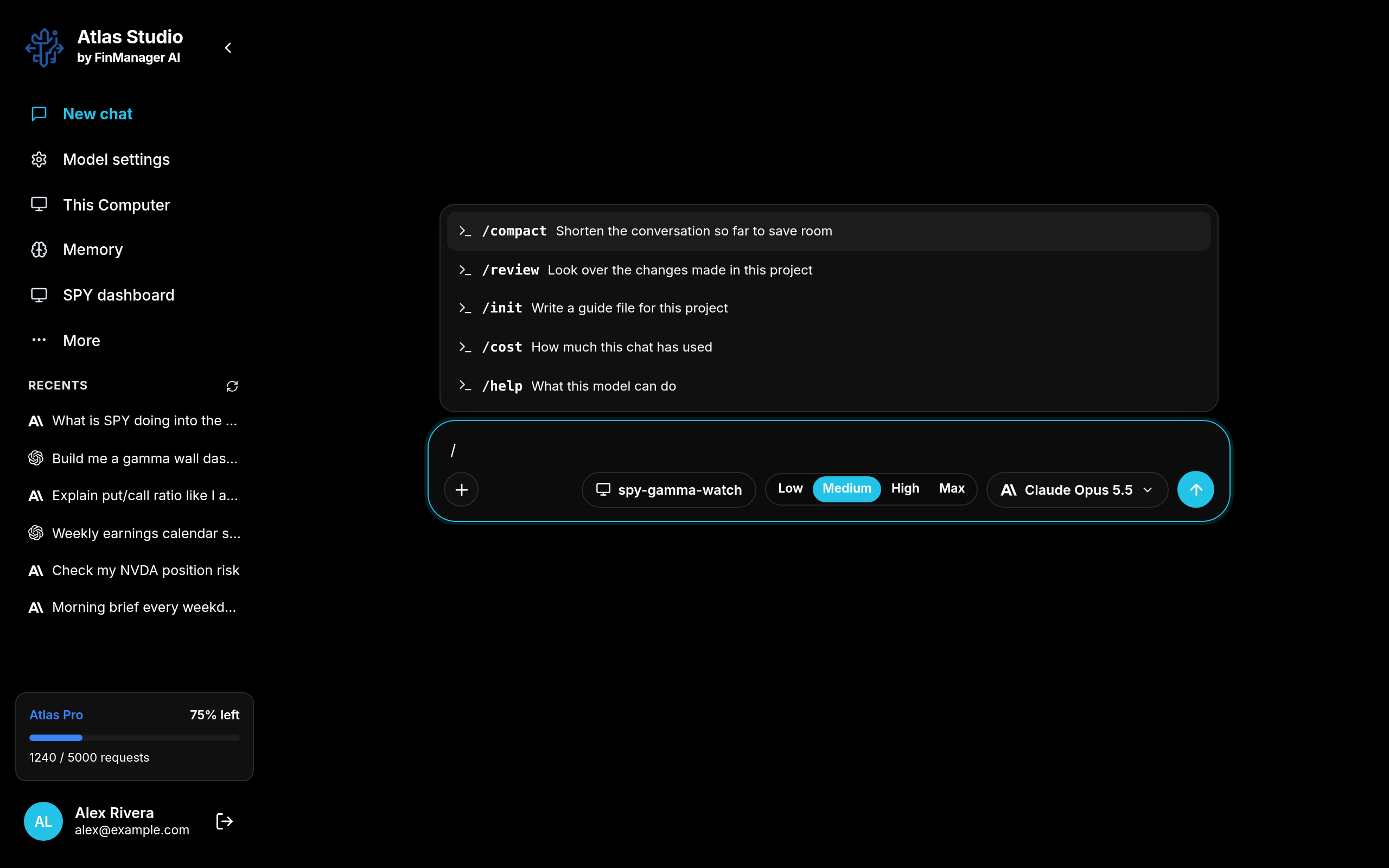
Type / to see the model's own commands, for example one that shortens a long conversation. What is on the list depends on the model.
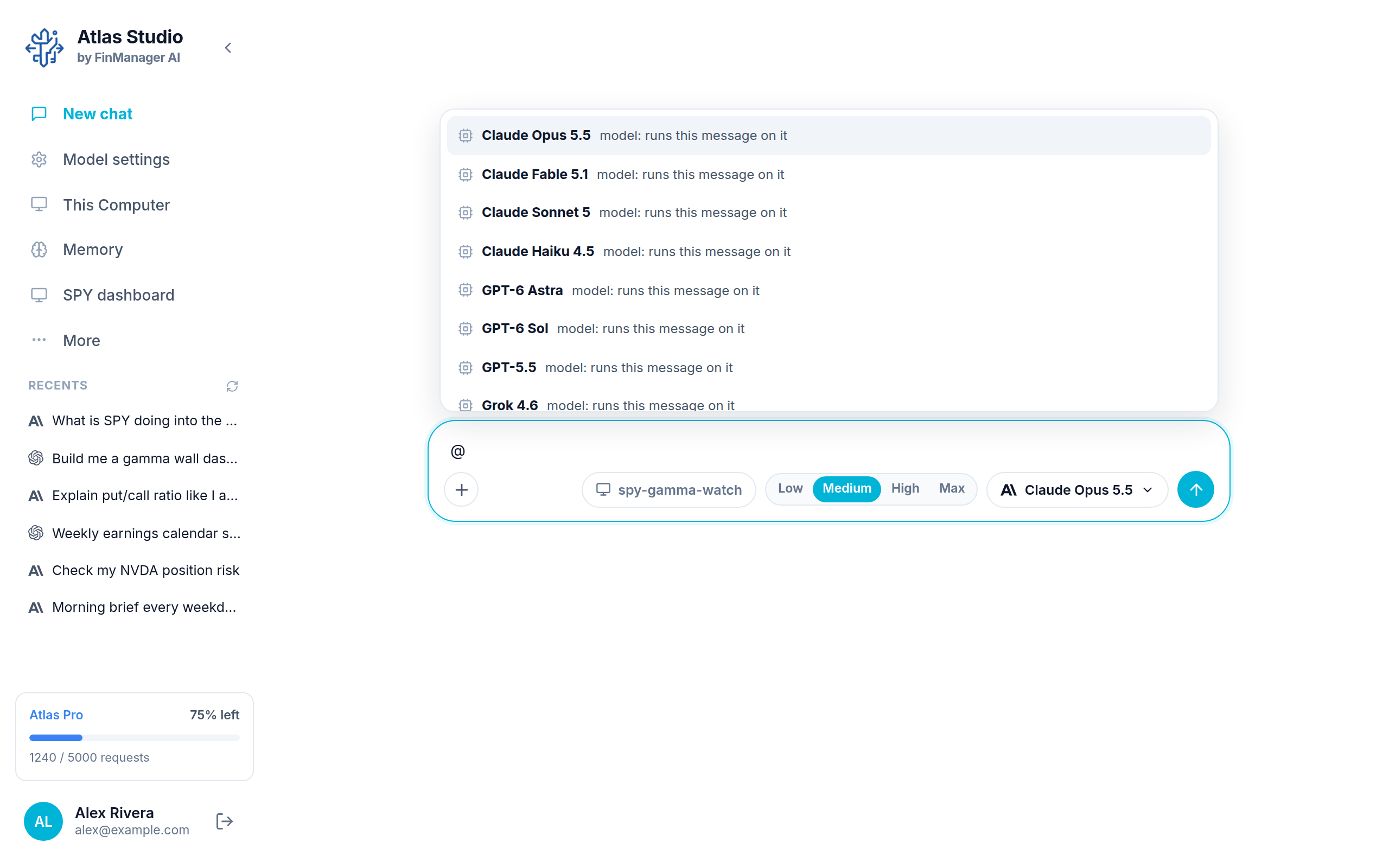
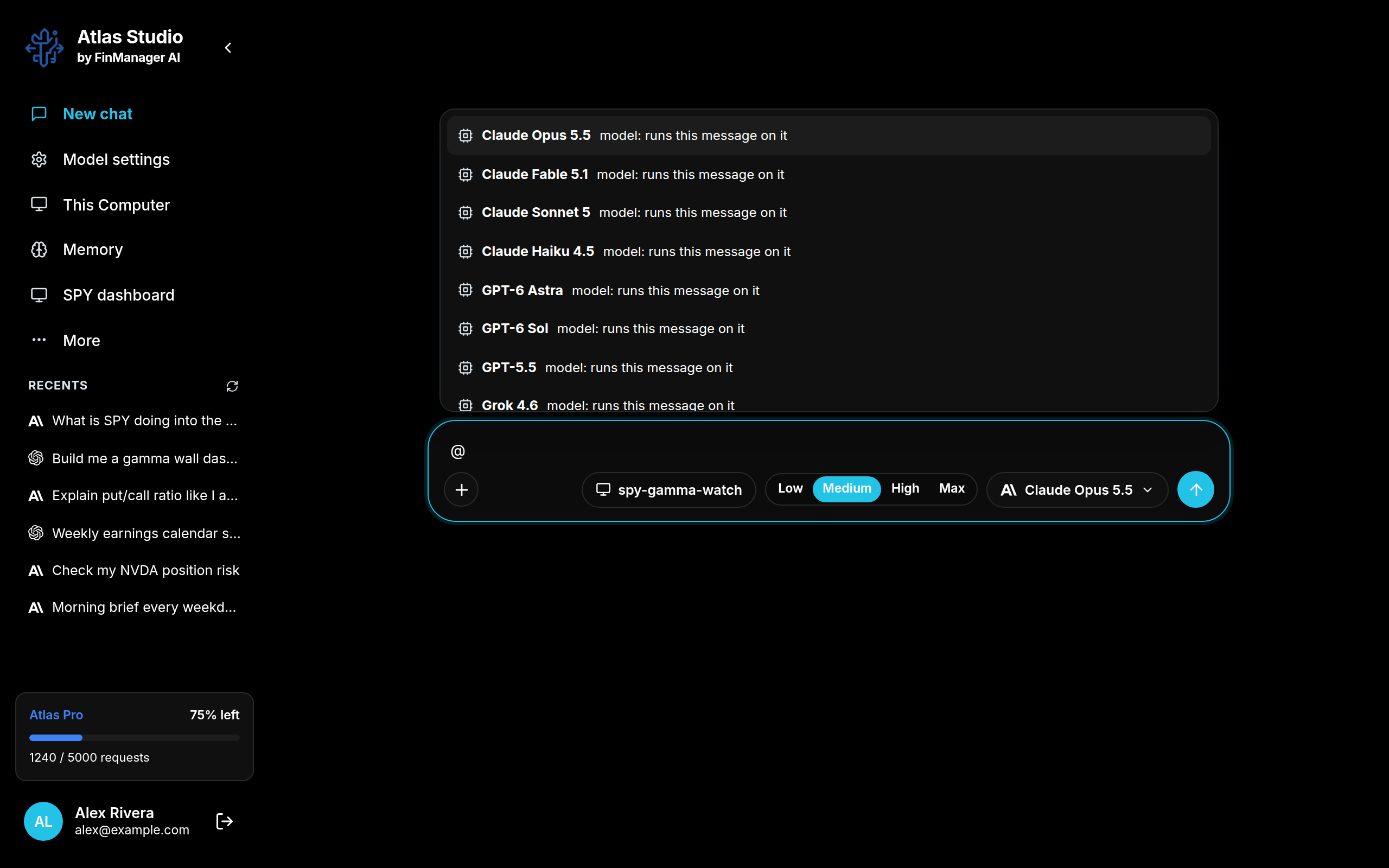
Type @ to pick either:
- a model, which sends just this one message to that model, or
- a file in your project, which sends the file along with your message.
Use the arrow keys to move, Enter to pick, Esc to close the list.
Reading the answer
- "calling tool: ..." rows show what Atlas looked up or did. Click one to see the details.
- "Thinking" rows hold the model's working. Click to read it.
- Charts from Atlas show right inside the chat, under the answer that made them.
- Right click any message and choose Copy message to copy it.