Make it yours
Profile, dark mode and updates
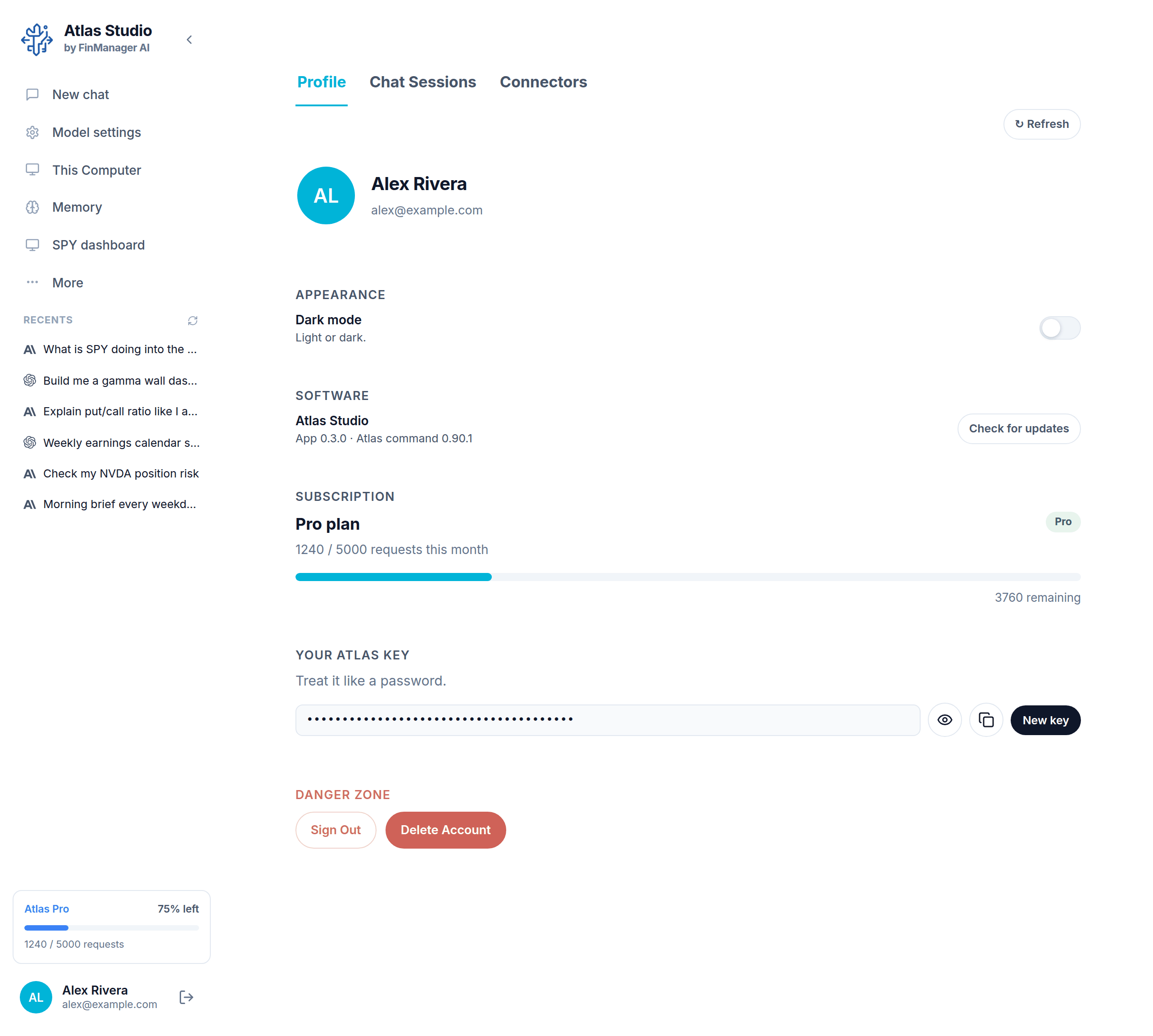
Click your name at the bottom of the left menu. Profile has three tabs along the top: Profile, Chat Sessions (see Find past chats) and Connectors (see Connectors).
What is on Profile
| Section | What it does |
|---|---|
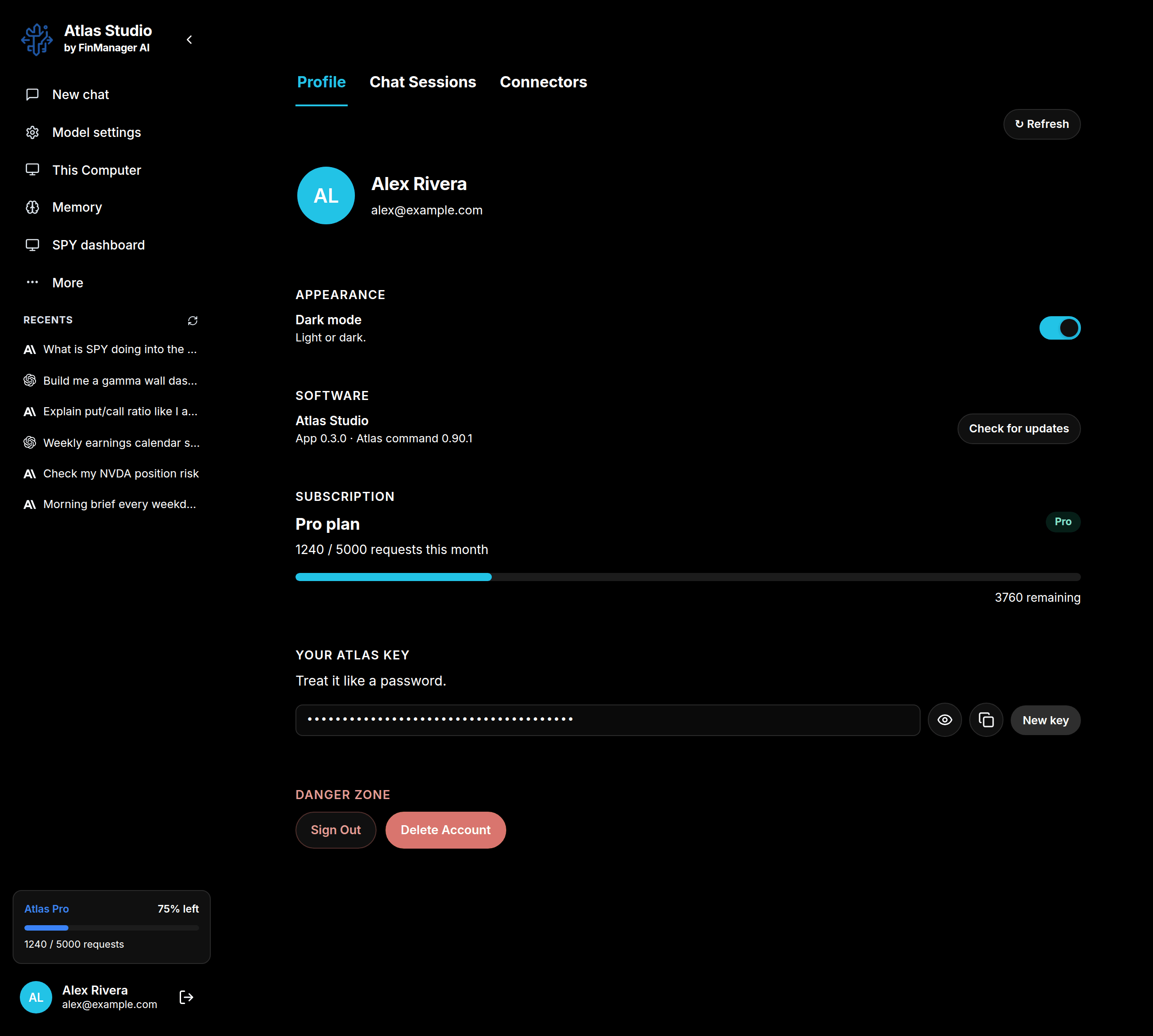
| Appearance | The Dark mode switch. Turn it on for a dark screen. |
| Software | Which version you have. Check for updates looks for a newer one now. |
| Subscription | Your plan and how many requests you have used this month. |
| Your Atlas key | A key for connecting other tools to your Atlas account. Treat it like a password. The eye shows it, the copy button copies it, New key makes a new one (the old one stops working). |
| Danger Zone | Sign Out and Delete Account. See Sign in and sign out. |
↻ Refresh at the top right reloads your details.
Dark mode
Profile → Appearance → turn on Dark mode. It changes the whole app, and dashboards follow it too.
Note
Your broker, Discord and billing are managed on the website, under Profile in the web dashboard.