Make it yours
Connectors
Connectors link Atlas to the other apps you use, like Gmail, Google Calendar, Notion or Slack. Once one is connected, you can ask for things like "add this to my calendar" in any chat, and your projects can use it too.
Click your name at the bottom of the menu, then the Connectors tab.
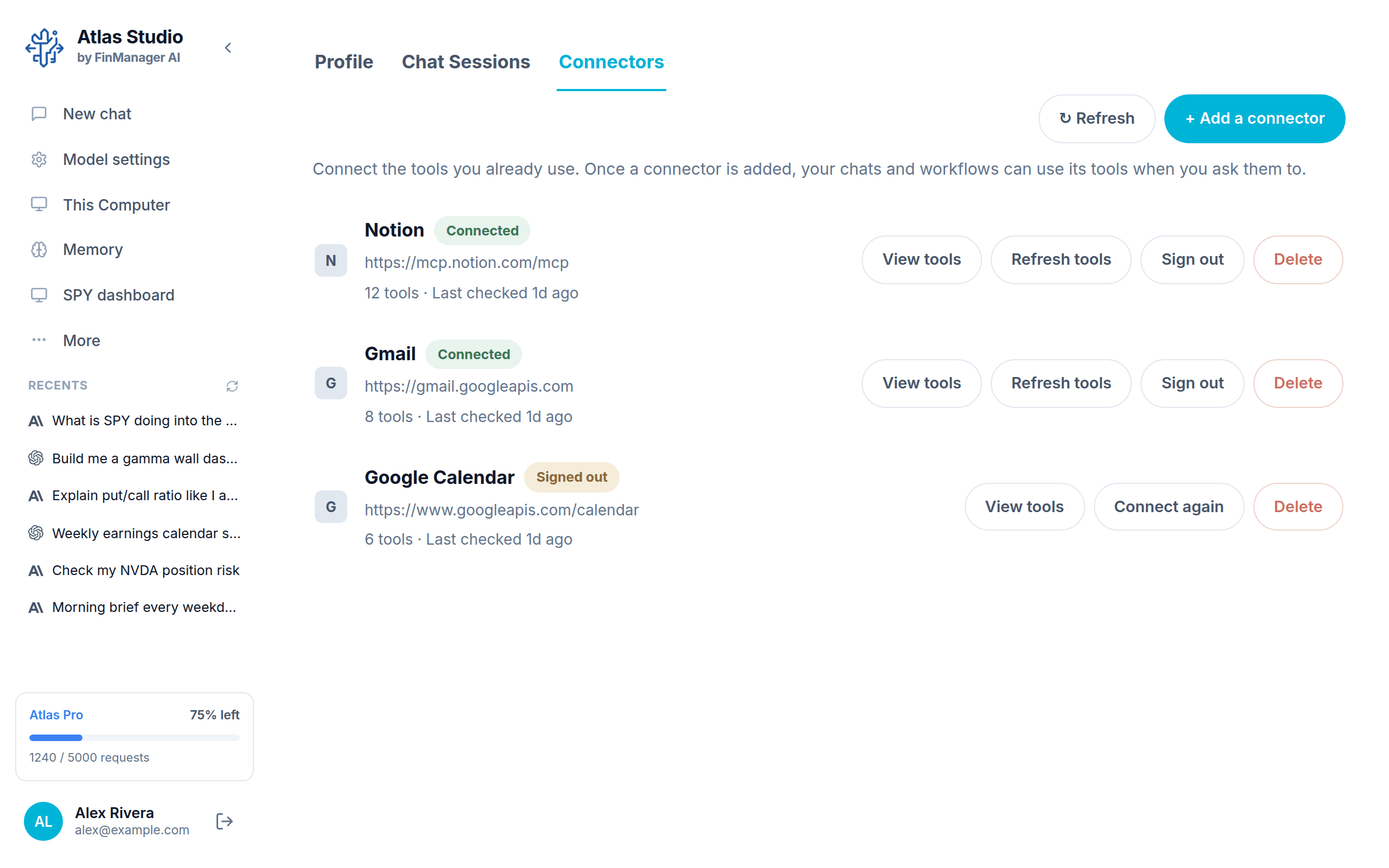
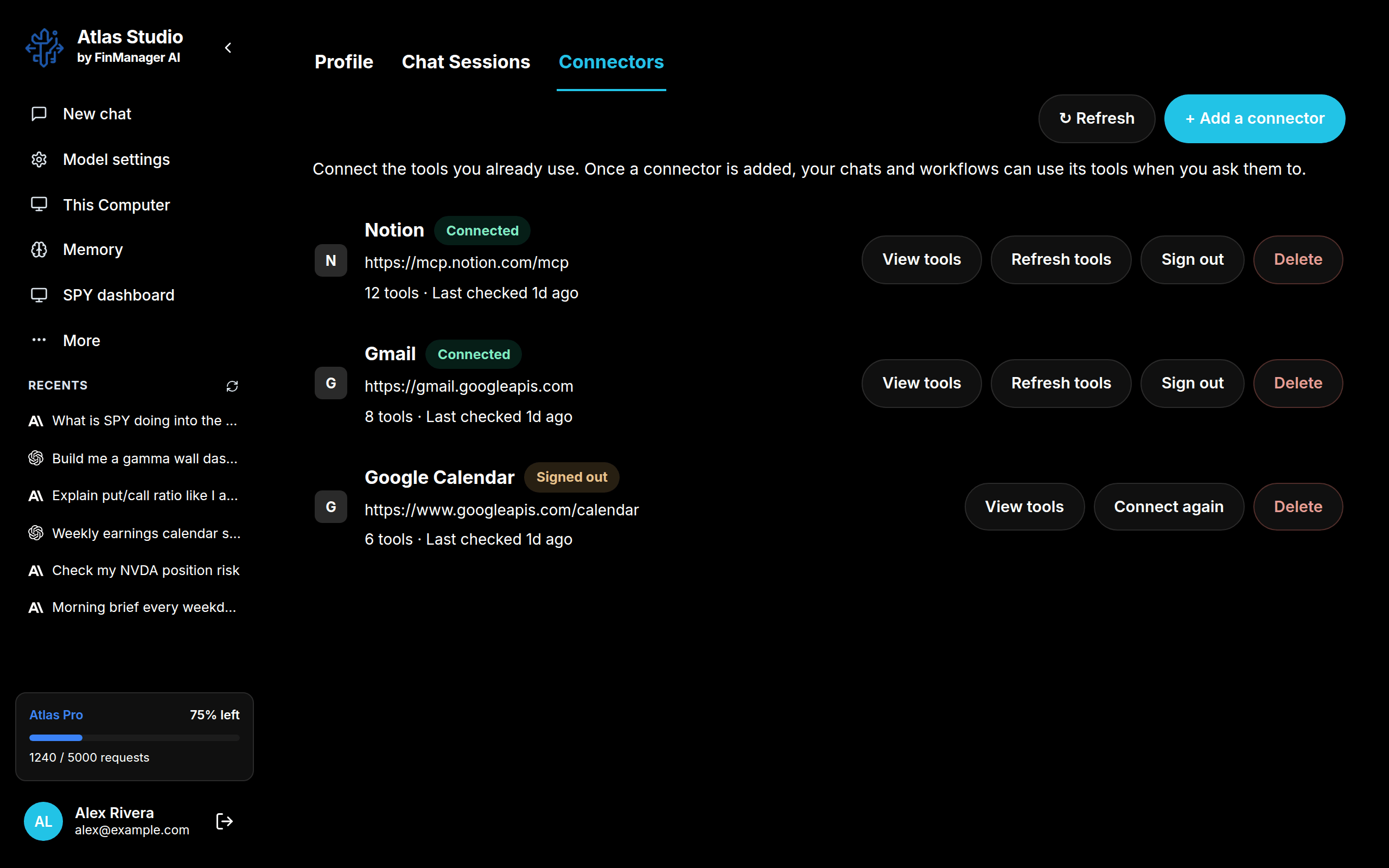
Add one
- Press + Add a connector.
- Search for the app, for example "notion", and click its tile.
- Press Sign in and connect.
- Your browser opens. Sign in there and allow access.
- Come back to Atlas. The connector shows Connected.
Nothing needs copying: the sign in comes back to the app on its own.
Not in the list? If the app gives you a connector address, press Add by address, fill in the name and address, and press Connect.
On each connector
| Button | What it does |
|---|---|
| View tools | See everything Atlas can do with it. |
| Refresh tools | Check again for what it can do. |
| Sign out | Disconnect it for now. You can Connect again later. |
| Delete | Remove it completely. |
Tip
Connectors live on your computer. Your sign ins are kept in your computer's locked storage, and Atlas talks to the app directly, not through our servers.