Models
Model settings
Click Model settings in the left menu. This is where you connect the AI models Atlas talks to.
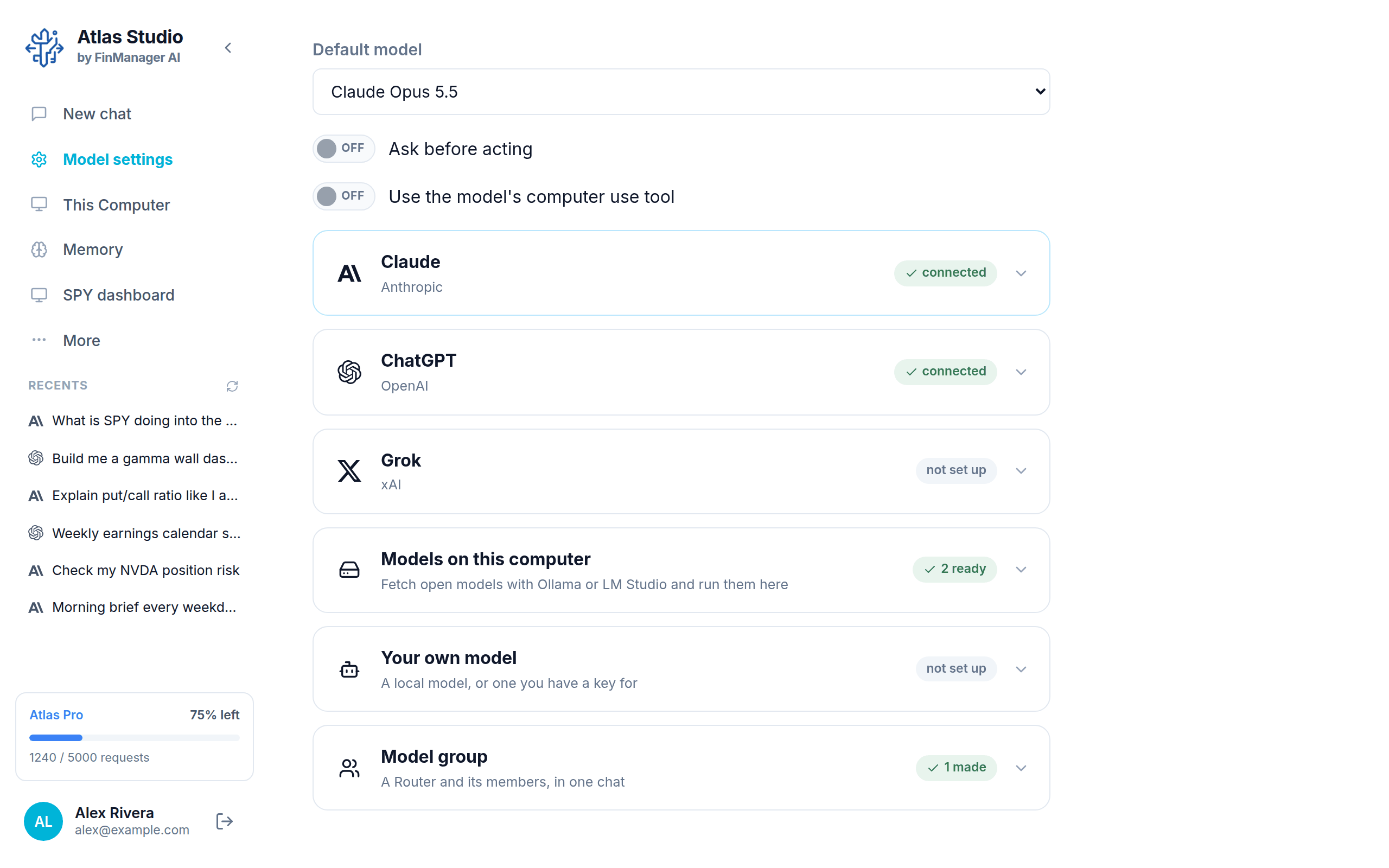
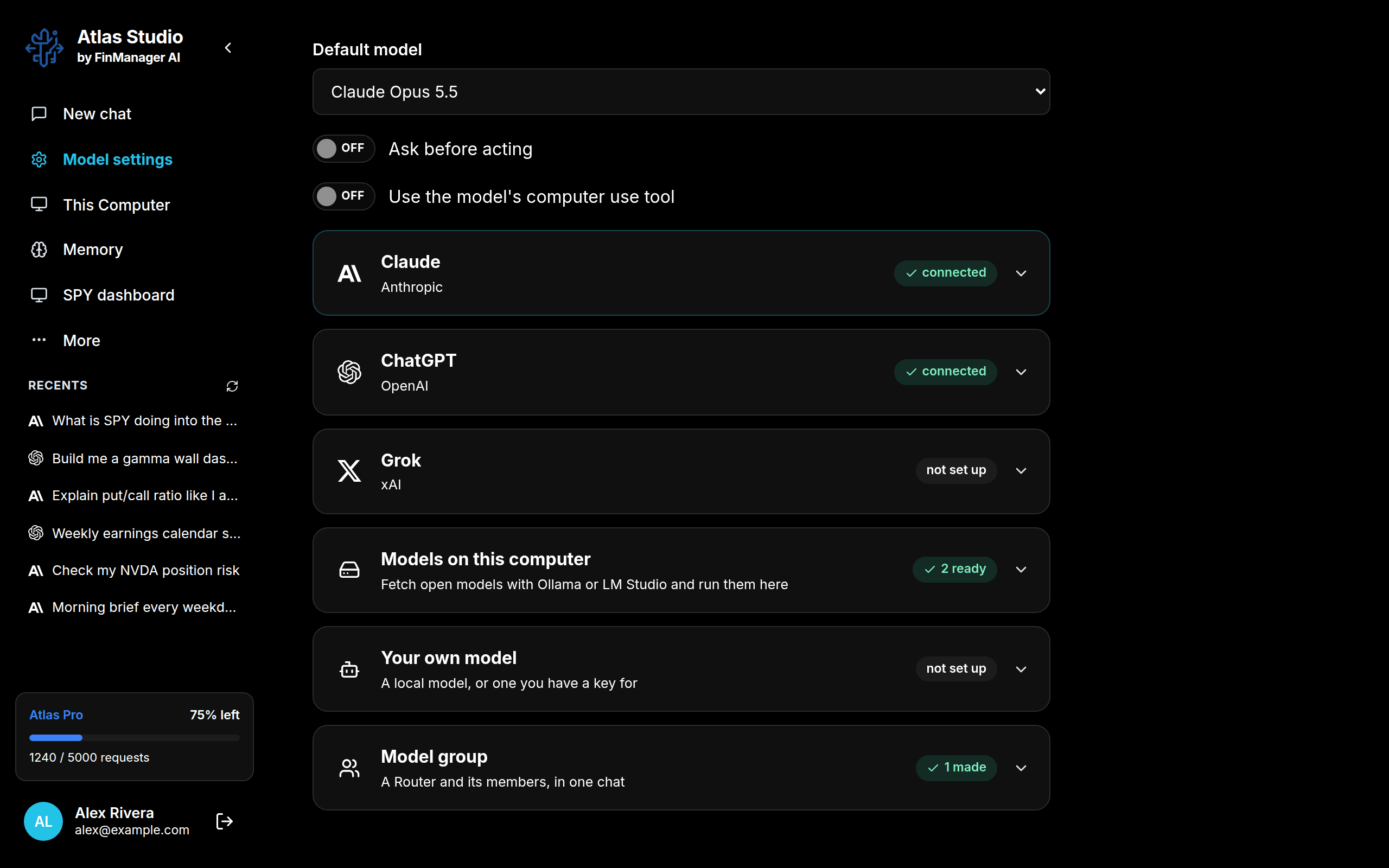
At the top
| Setting | What it does |
|---|---|
| Default model | The model every new chat starts on. Pick one means you choose each time. |
| Ask before acting | When on, the model asks you before each step. See Ask before acting. |
| Use the model's computer use tool | Only matters for a model you added with a key. Leave it off unless you know you need it. |
On Windows there is one more switch, Keep the screen on after Remote Desktop. Turn it on if you reach this computer through Remote Desktop and want Atlas to keep working when you disconnect.
One row per model
Each row shows the model and a tag on the right:
| Tag | Means |
|---|---|
| connected | You signed in. Ready to use. |
| key set | You pasted a key. Ready to use. |
| not set up | Not connected yet. |
Click a row to open it:
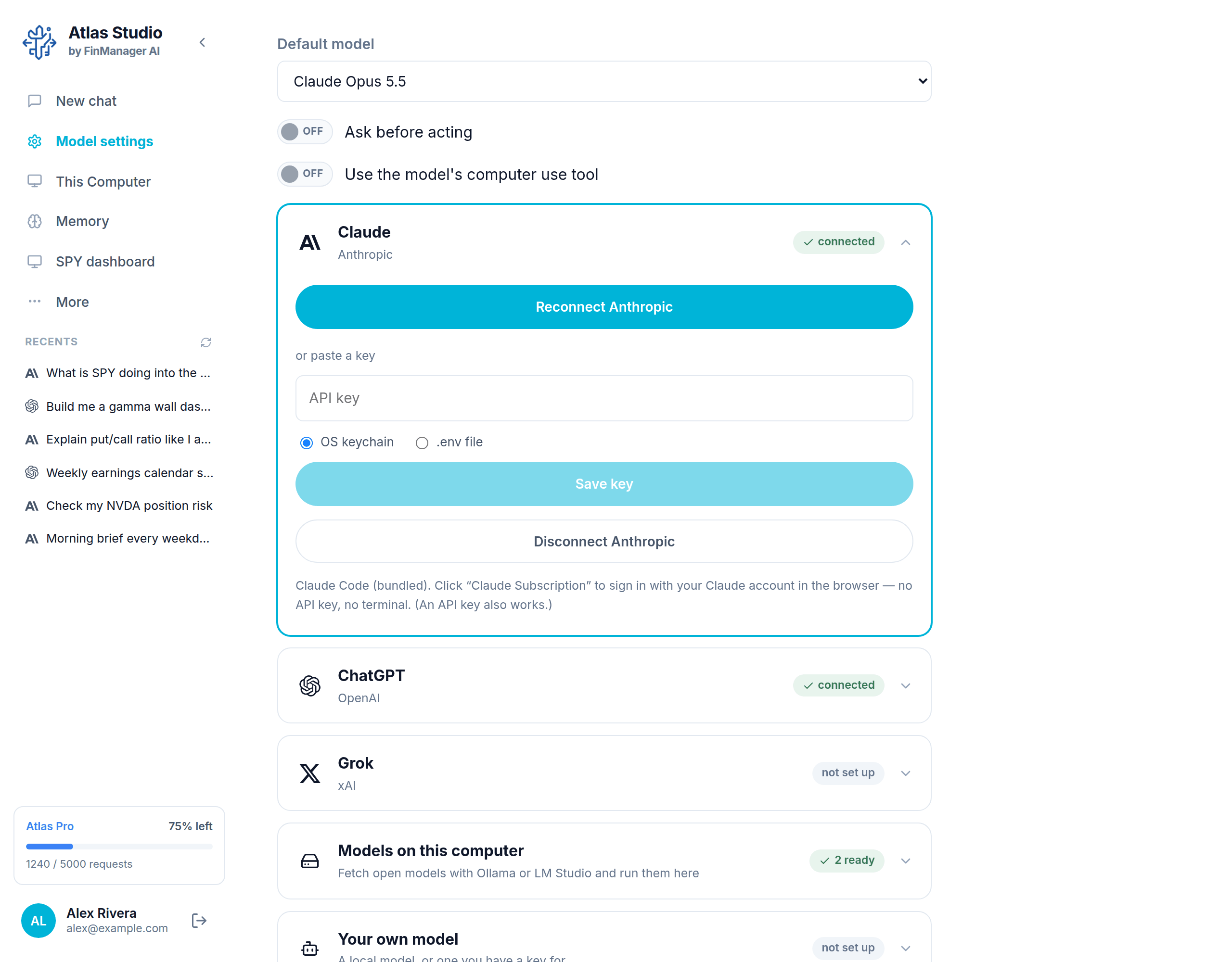
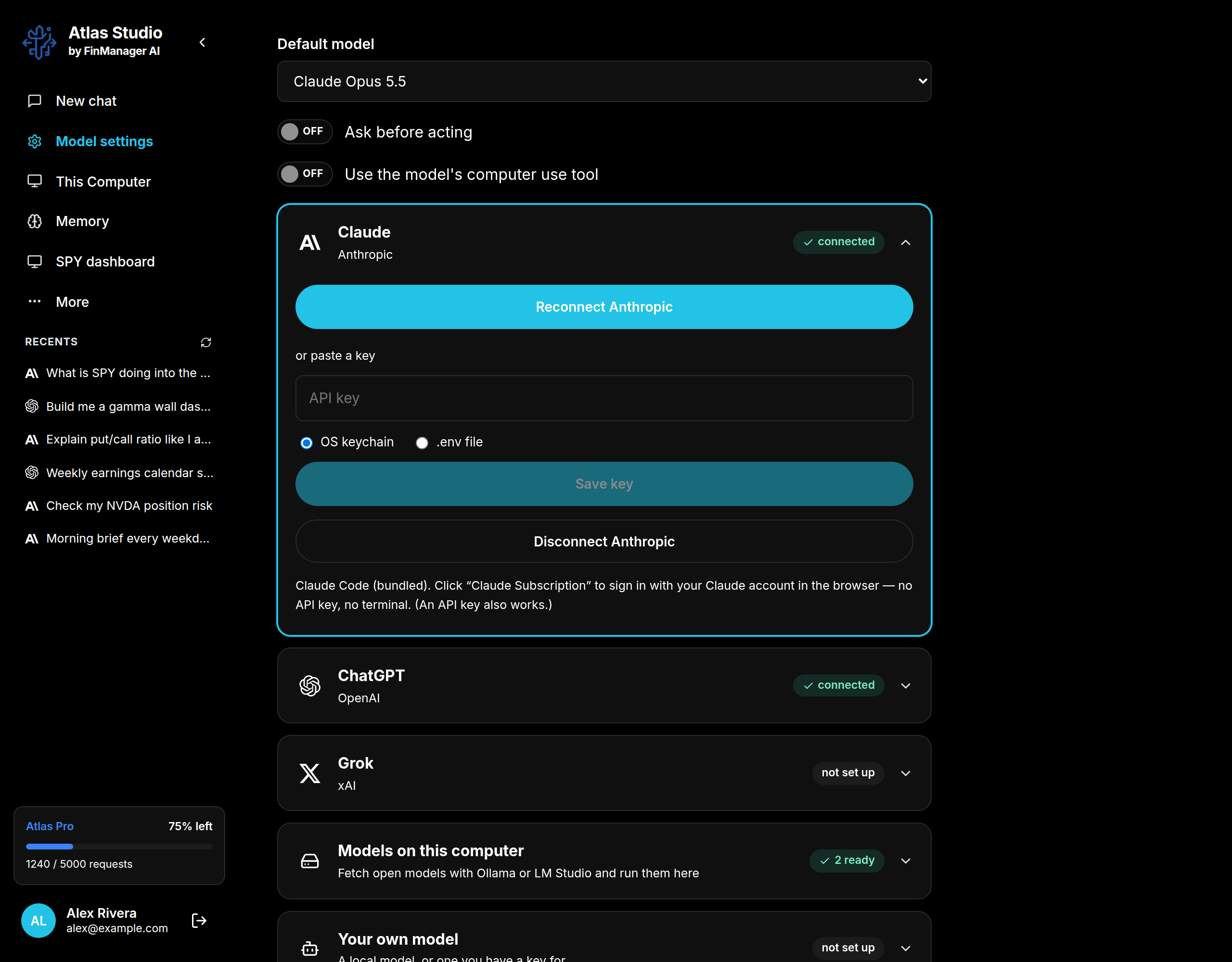
- Sign in to Anthropic / OpenAI / xAI opens your browser so you can sign in with your normal account. Once connected it says Reconnect instead.
- or paste a key lets you use an API key instead. Choose OS keychain or .env file, then Save key.
- Disconnect removes the sign in or key from this computer.
Grok needs one extra step the first time: press Install Grok, wait for it to finish, then sign in.
Note
Signing in to a model does not switch your current chat to it. Pick it in the chat box or set it as the Default model.
The last three rows
| Row | What it is for |
|---|---|
| Models on this computer | Download free models and run them on your own machine. |
| Your own model | Add any other AI service you have a key for. |
| Model group | Make a team of models that work in one chat. |