Checks
A project is rarely right the first time. Checks are small tests Atlas writes for a project and runs again and again: do my fill prices match the broker's?, *is every trade in?, does the Sharpe ratio use the risk-free rate?* While Atlas builds or changes a project, it runs its checks by itself and tells you. Say *"stop the checks"* in the chat if you would rather it did not.
Open a project and click the Checks tab.
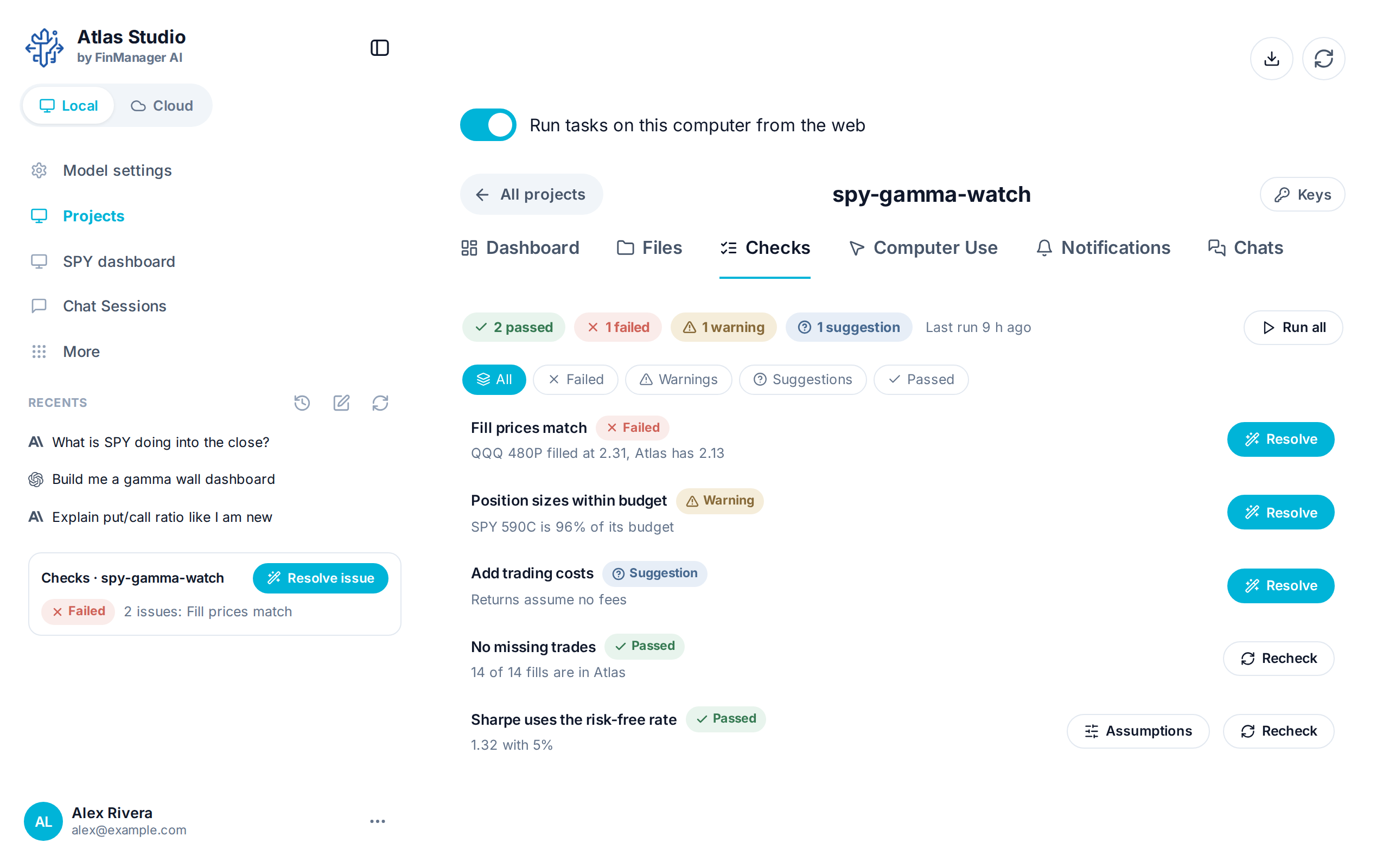
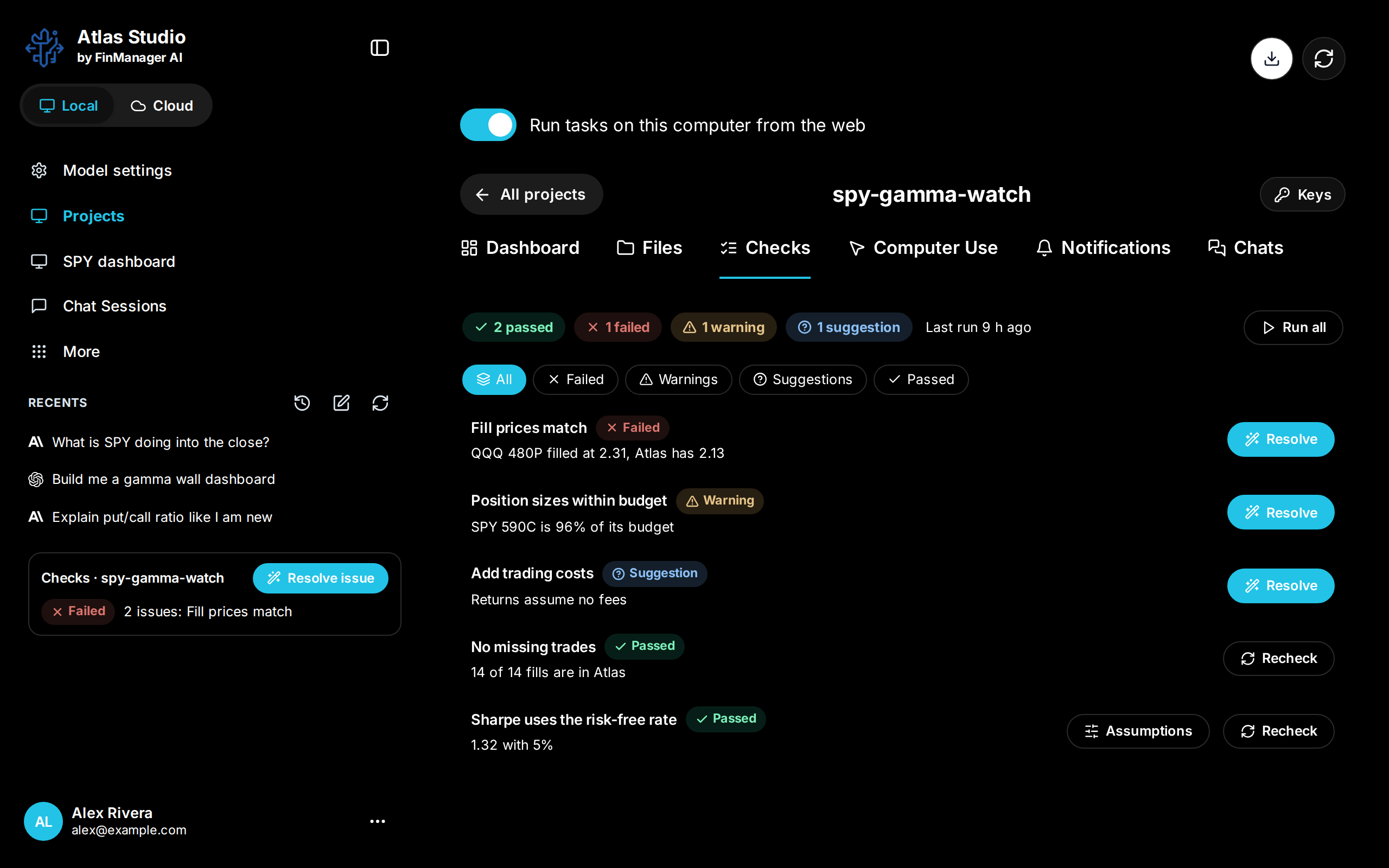
- Along the top: how many passed, failed, gave a warning or a suggestion, when they last ran, and Run all.
- The filters show only one kind.
- Each check says what it found, with a tag for its result.
The buttons on a check
| Button | What it does |
|---|---|
| Resolve | Hands the problem to Atlas in the project's chat, to fix it. |
| Recheck | Runs that check again exactly as it ran, with the same data. |
| Assumptions | The numbers the check uses. See below. |
A check's page
Click a check to open it. The newest run is at the top and older runs are below it, each with when it ran and what started it (its schedule, a change to the project's files, new data, or you). Click a run to read its full report.
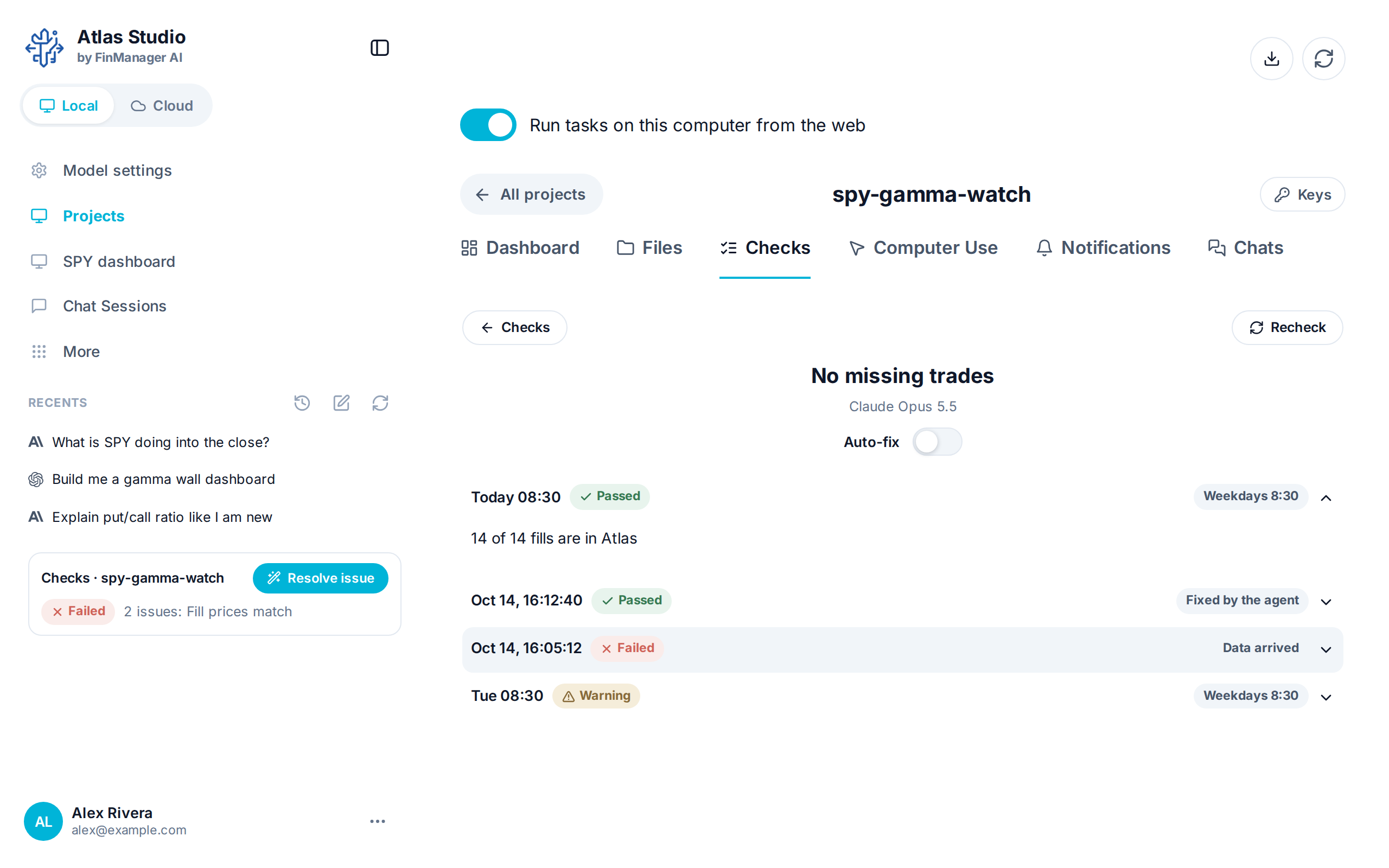
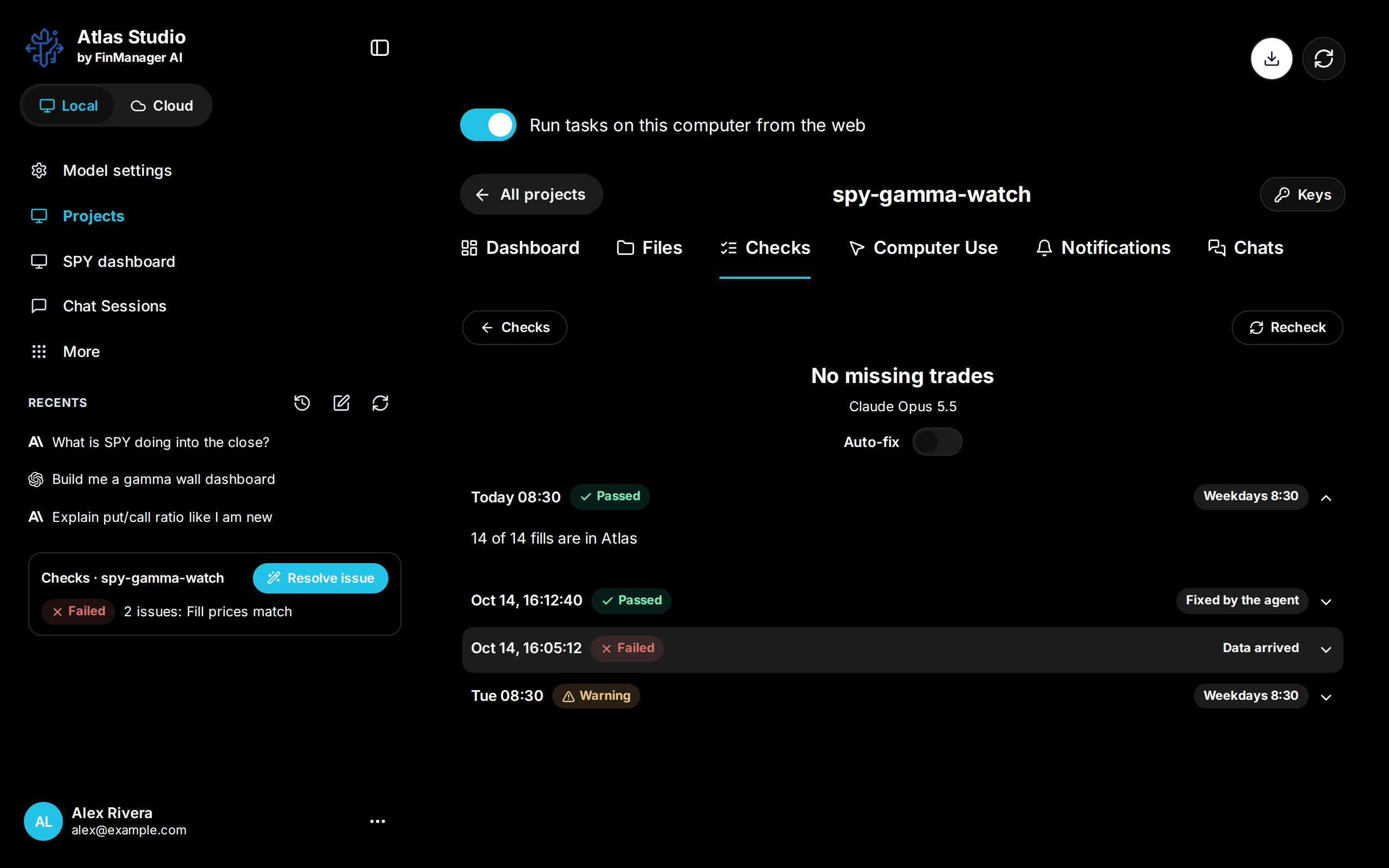
Auto-fix lets Atlas fix a failing check by itself. It stops after three tries and tells you.
Assumptions
Some checks depend on numbers you might want to change, such as the risk-free rate, fees per trade or a start date. Press Assumptions on the check.
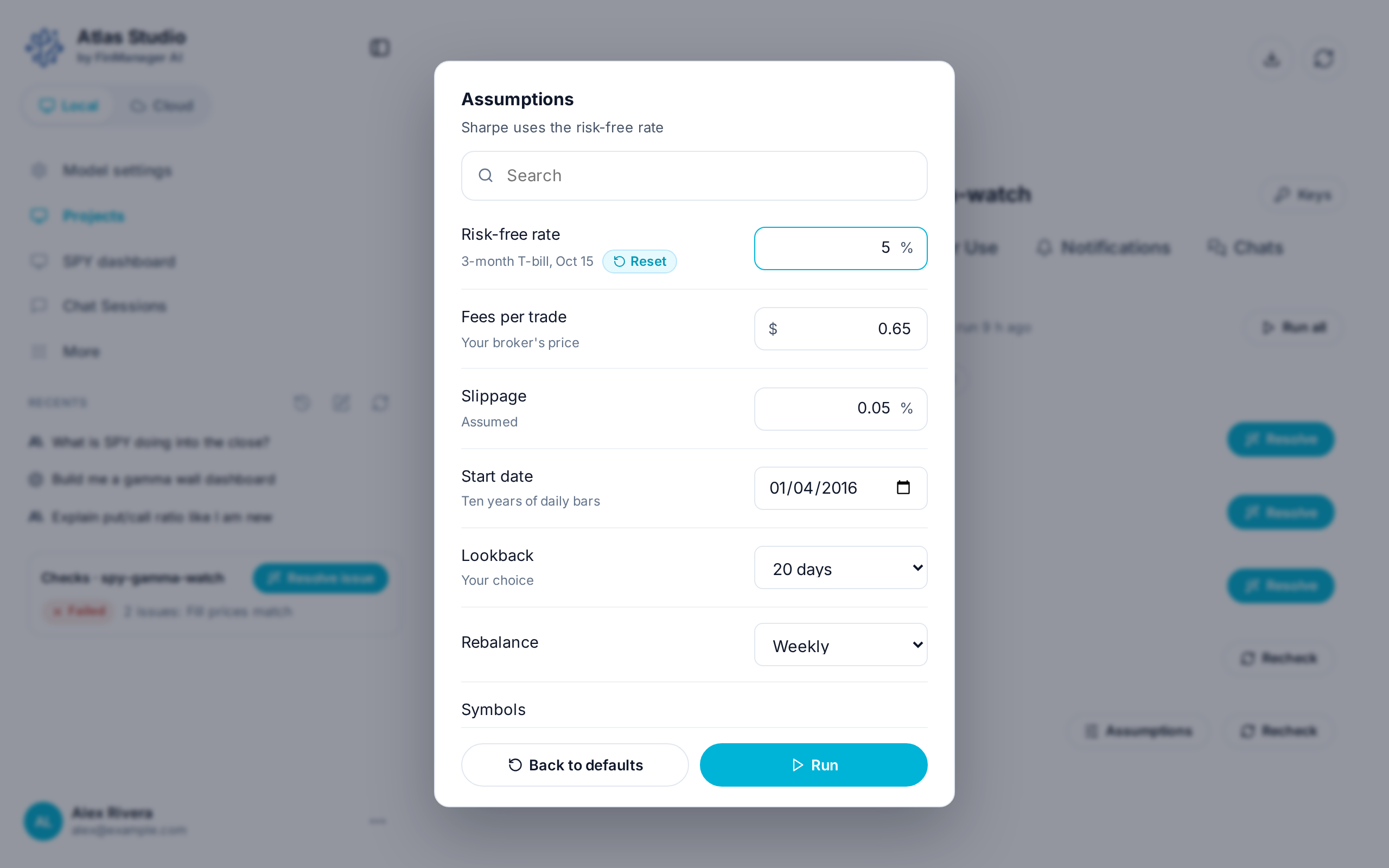
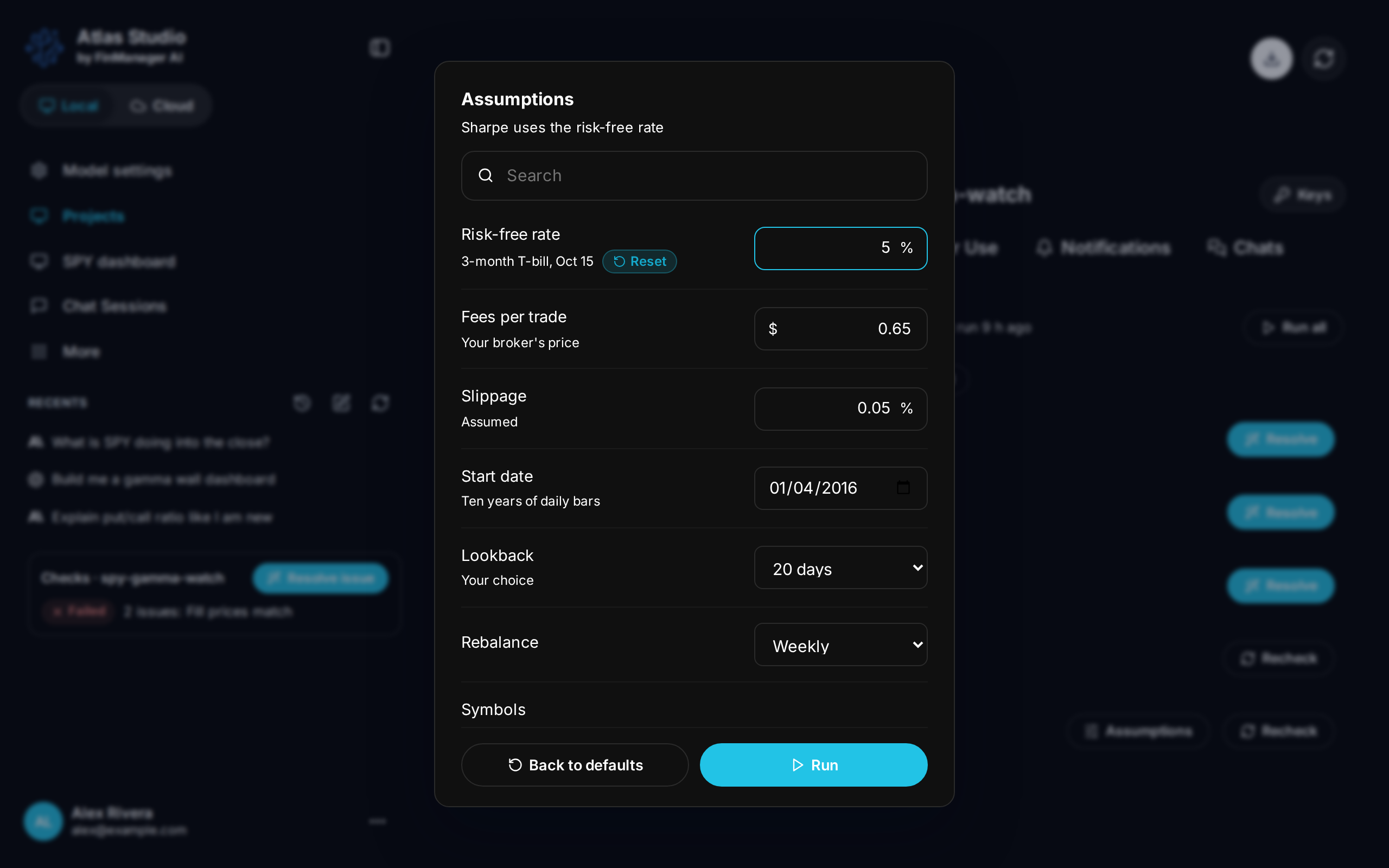
- Type a new number, or pick from the list. A changed number shows ↺ Reset, which puts it back.
- Run runs the check with your numbers. They are kept for later runs.
- Back to defaults puts every number back.
When checks run
When you press Run all or Recheck, on the project's schedule, and when the project's files or data change. To change when, ask in the chat, for example "run the checks every morning at 8:30".
The side panel shows a line for a project whose checks need you, with Resolve issue. Without a plan, checks do not run (see Your plan and the two free weeks).
Need help? Email accesspoint@finmanagerai.com.