Make or edit a workflow
Click New workflow (or open a card) to open the form. It has six steps across the top: Basics, Schedule, Tools, Reasoning, Trades, Notify. The same form is used to make and to edit. You can save from any step.
Basics: name, job, broker
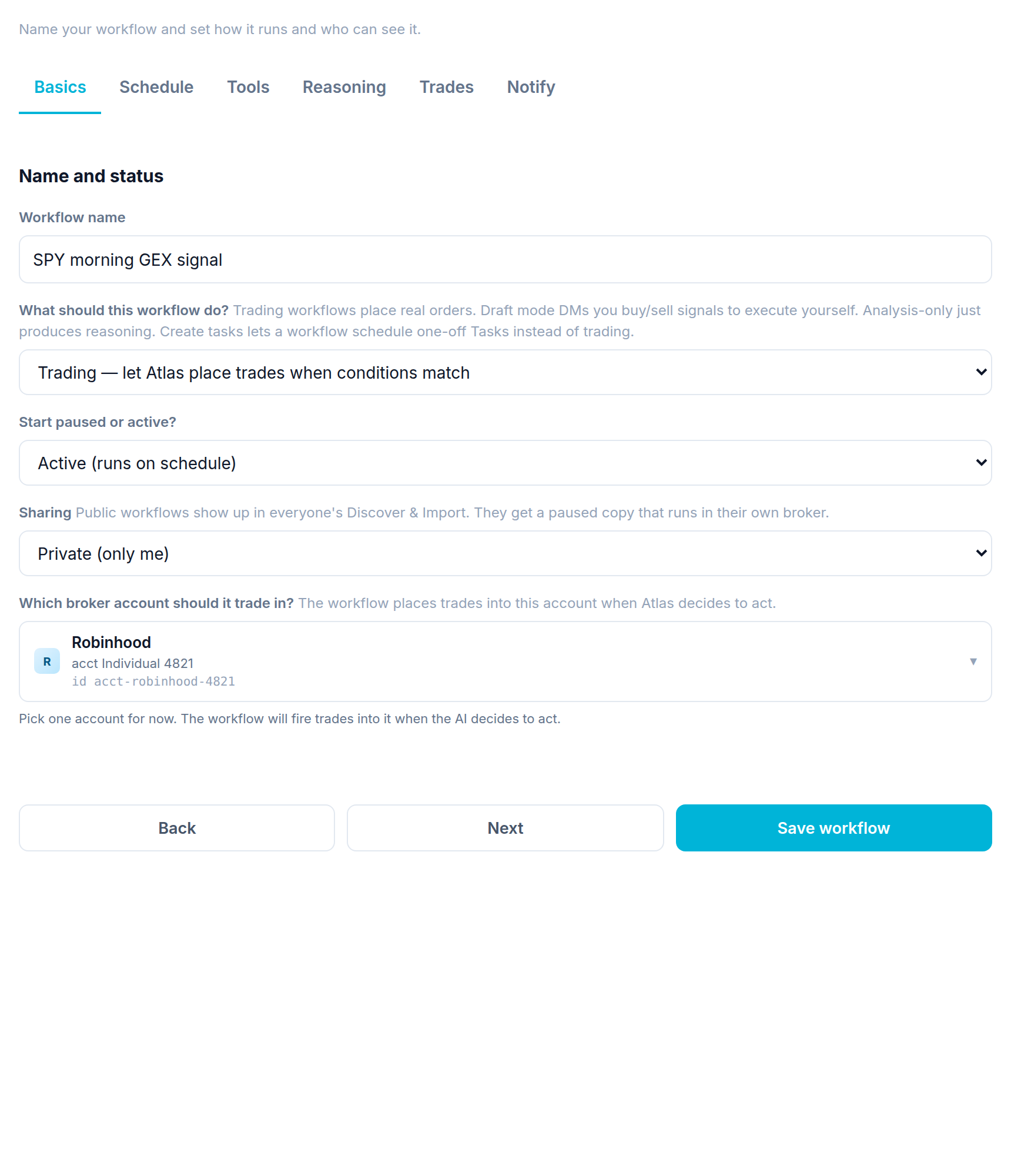
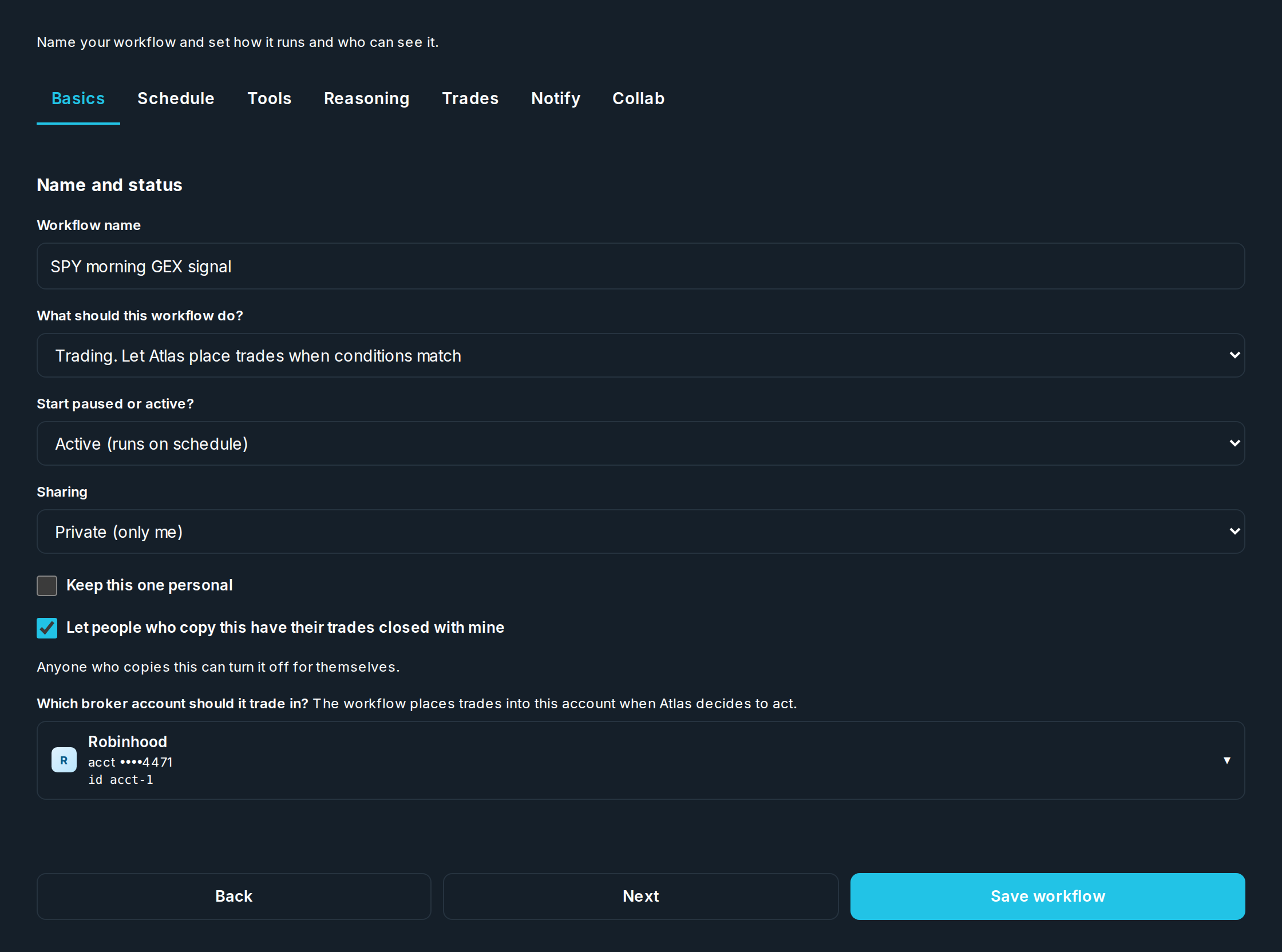
| Field | What it does |
|---|---|
| Workflow name | A short name for the card and history. |
| What should this workflow do? | Trading (places real orders), Draft (sends you the order to place by hand), or Analysis (only thinks). |
| Start paused or active? | On workflows run on their own on their schedule or alert. |
| Sharing | Private (only you) or Public (others can find and import it). |
| Which broker should it trade in? | The linked account orders go to (Trading mode). |
Schedule: when it runs
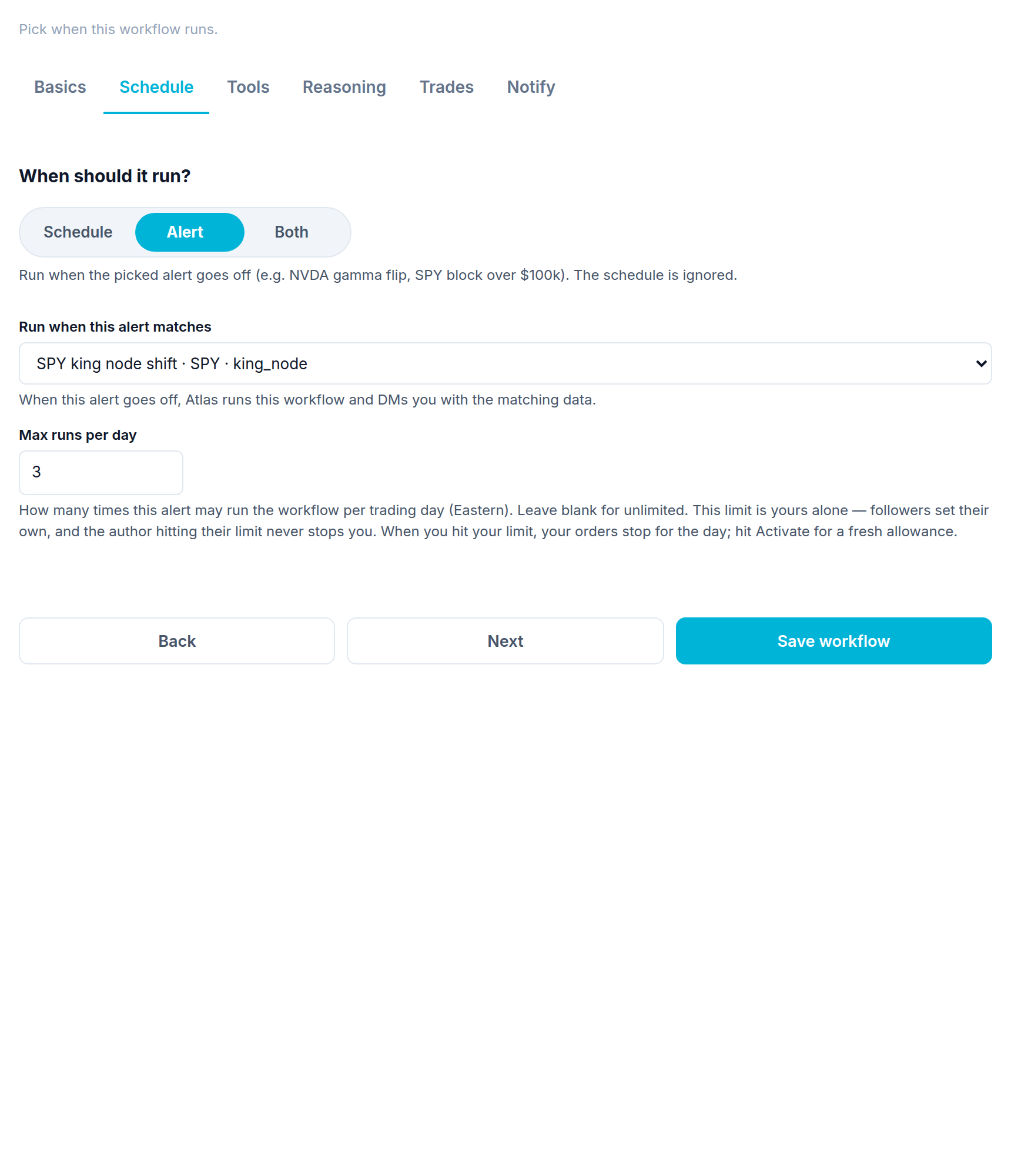
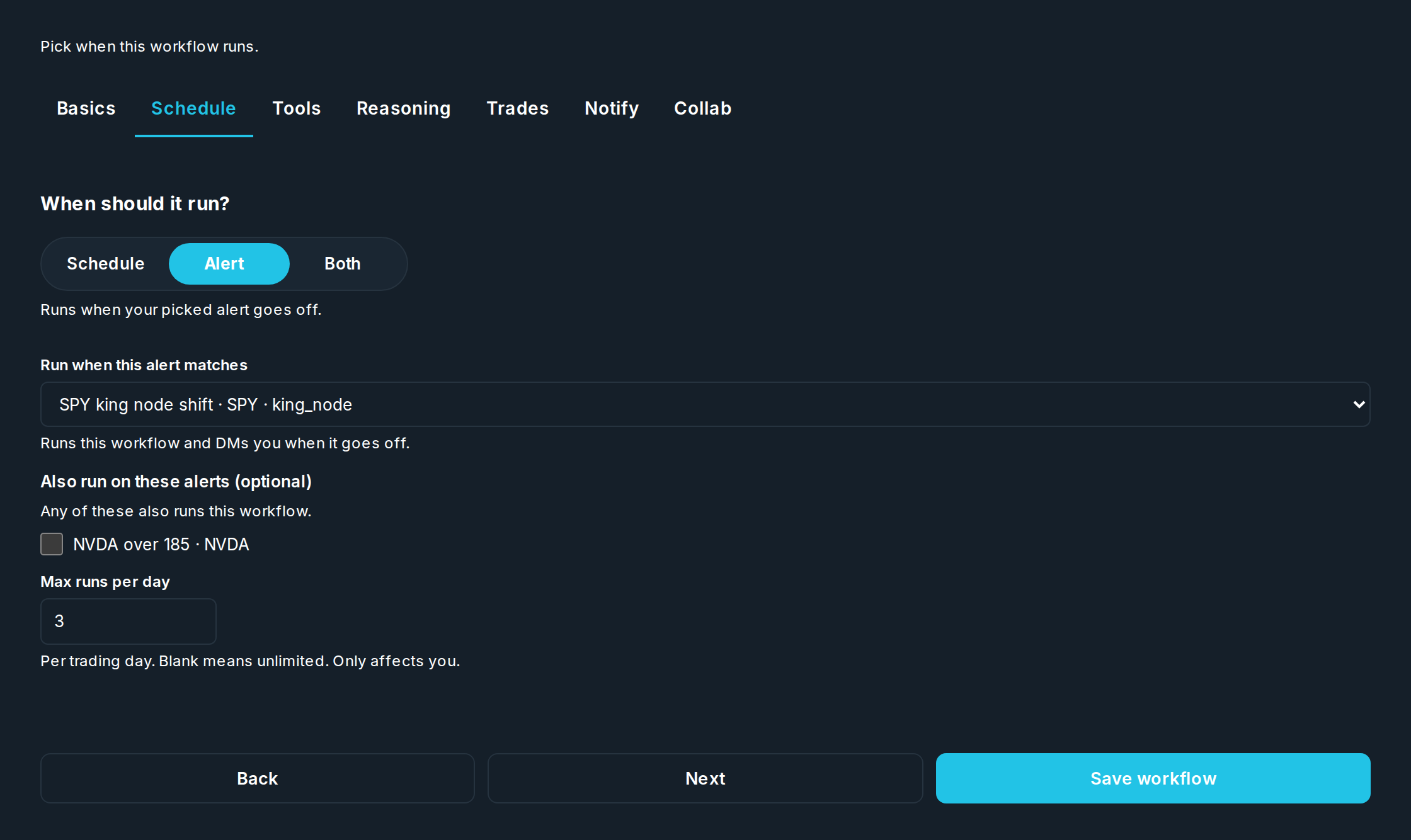
Pick how it starts: a Schedule (a set time), an Alert (when a market alert goes off), Both schedule and alert, or Manual. Then set the time or alert, the timezone, and a Max runs per day. Hitting the limit pauses it until the next trading day. Running it by hand is always allowed.
Manual means nothing starts it but you. No schedule, no alert: it sits there until you press Run now. If you switch back to a schedule later, the times you had are still there.
On a copy, the timing comes from the author. You can still add your own alert. It messages you on your own window without changing the copy.
Asking you some questions first
A Manual workflow can ask you a few things before it runs. Tick Ask me some questions before it runs and write them. Press Run now and you get the form; what you fill in goes to Atlas as part of the instruction for that one run.
Each question has an answer type:
| Type | The person gets |
|---|---|
| Free form | A box to type in, short or long. |
| Date | A date picker. |
| Time | A time picker. |
| Pick one | Your choices, one selectable. |
| Pick several | Your choices, any number selectable. |
Pick one and Pick several need at least one choice. Tick Must be answered on anything the run cannot do without, and the form will not submit until it is filled in.
Submitting always stops for review, whether or not you use *Let me review each run*. You typed the inputs, so you see what they produced before anything is placed. Accept it or throw it away.
The questions travel with the workflow. Anyone who imports it is asked the same things when they run their own copy — their trades still come from your runs, as they always did.
Only on Manual. A scheduled or alert-driven workflow starts on its own, with nobody there to answer, so there is nothing to ask.
Tools: what Atlas looks at
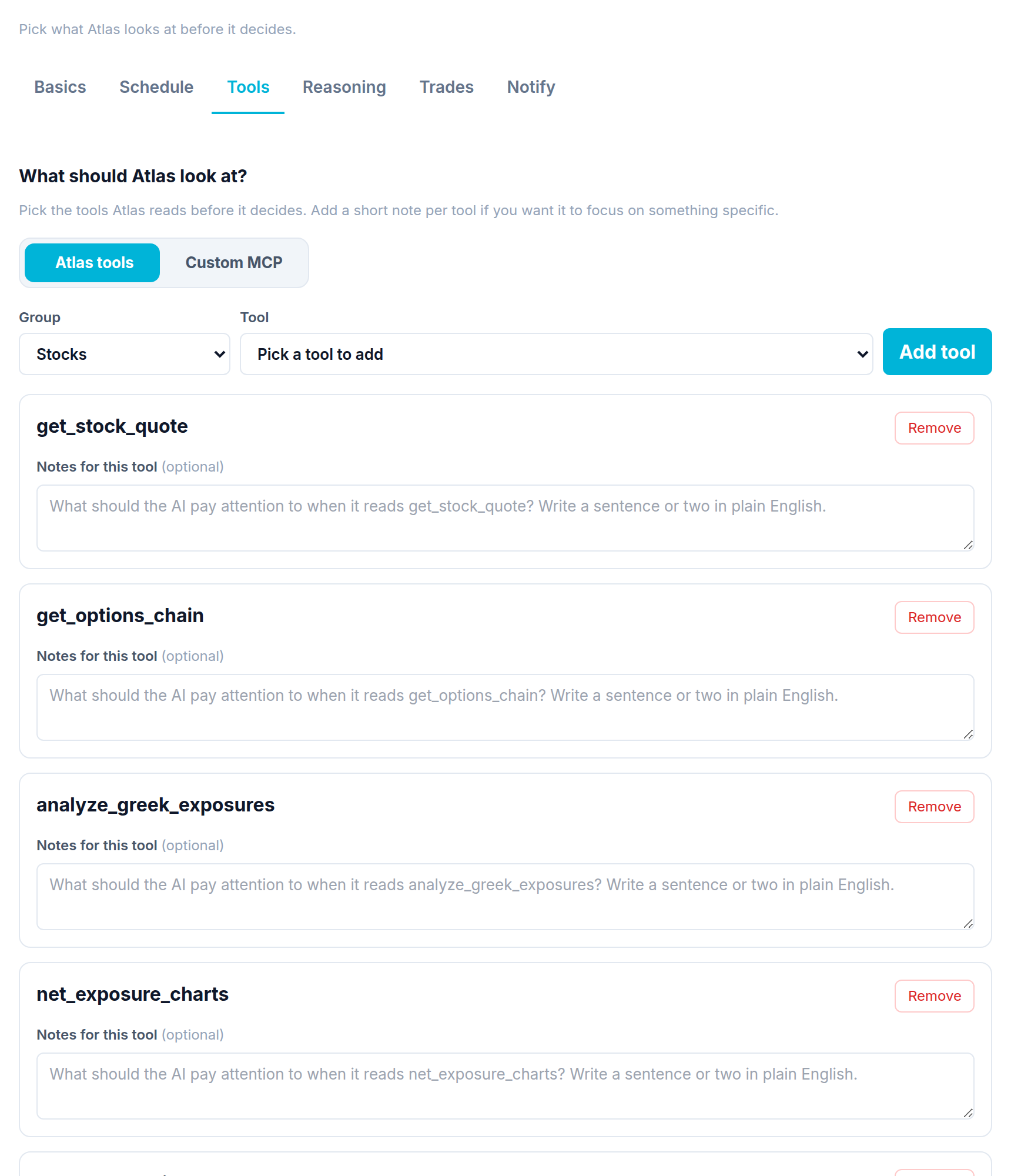
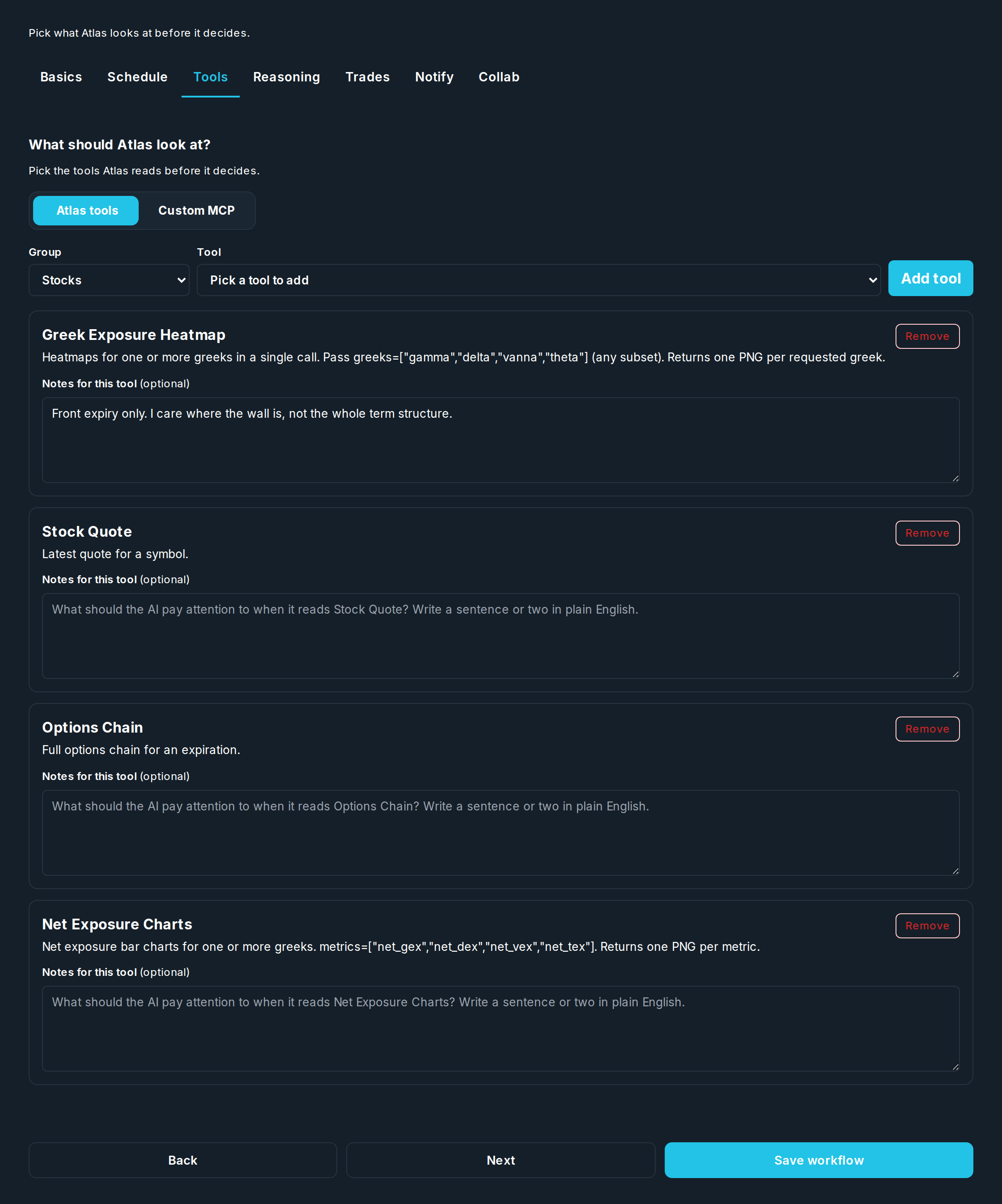
Pick the market data tools Atlas can use on each run: quotes, the options chain, gamma, flow, charts, company numbers, and more. The workflow only looks with these. It does not trade from this list (you set trading in the Trades step).
Reasoning: your rules
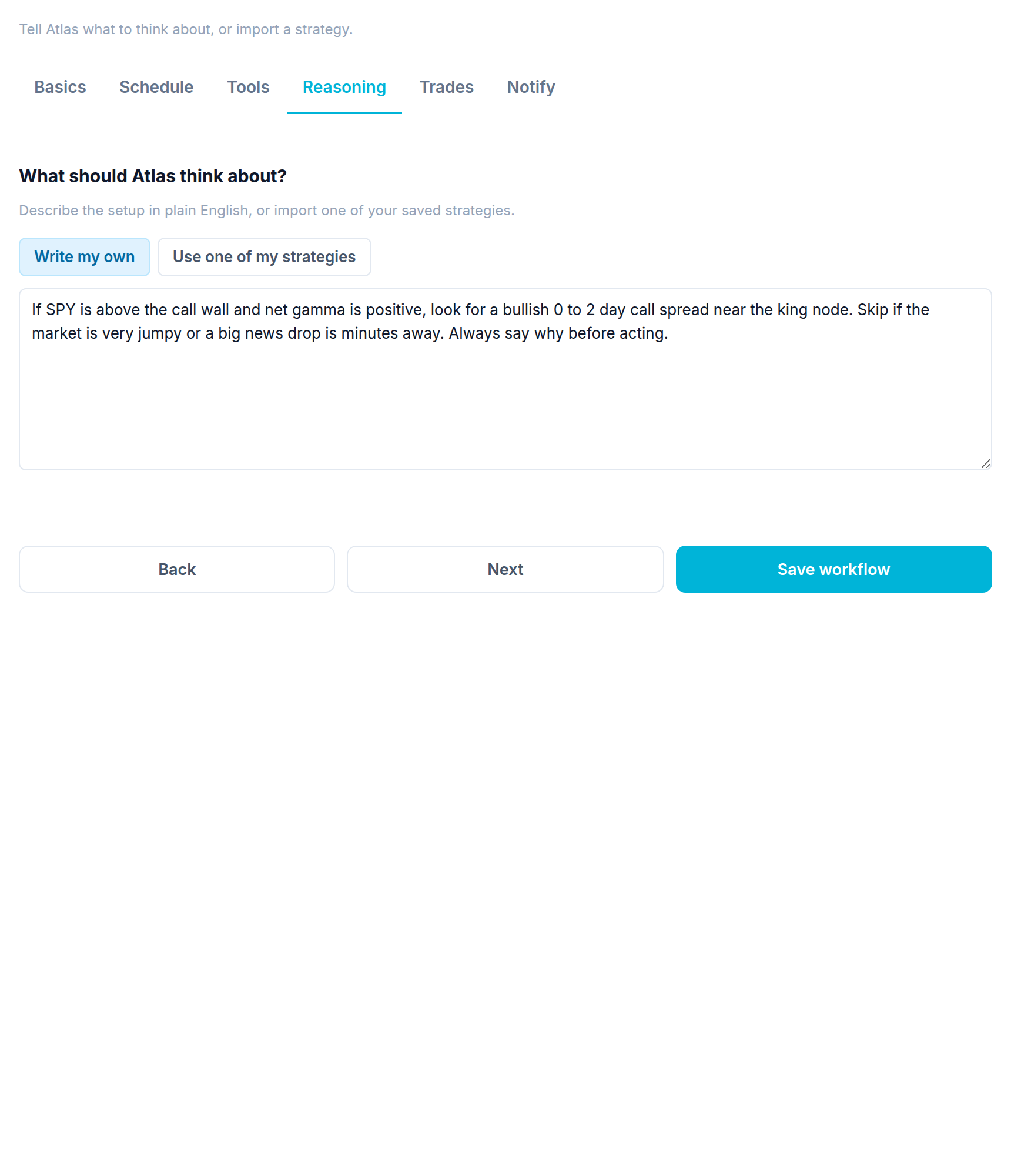
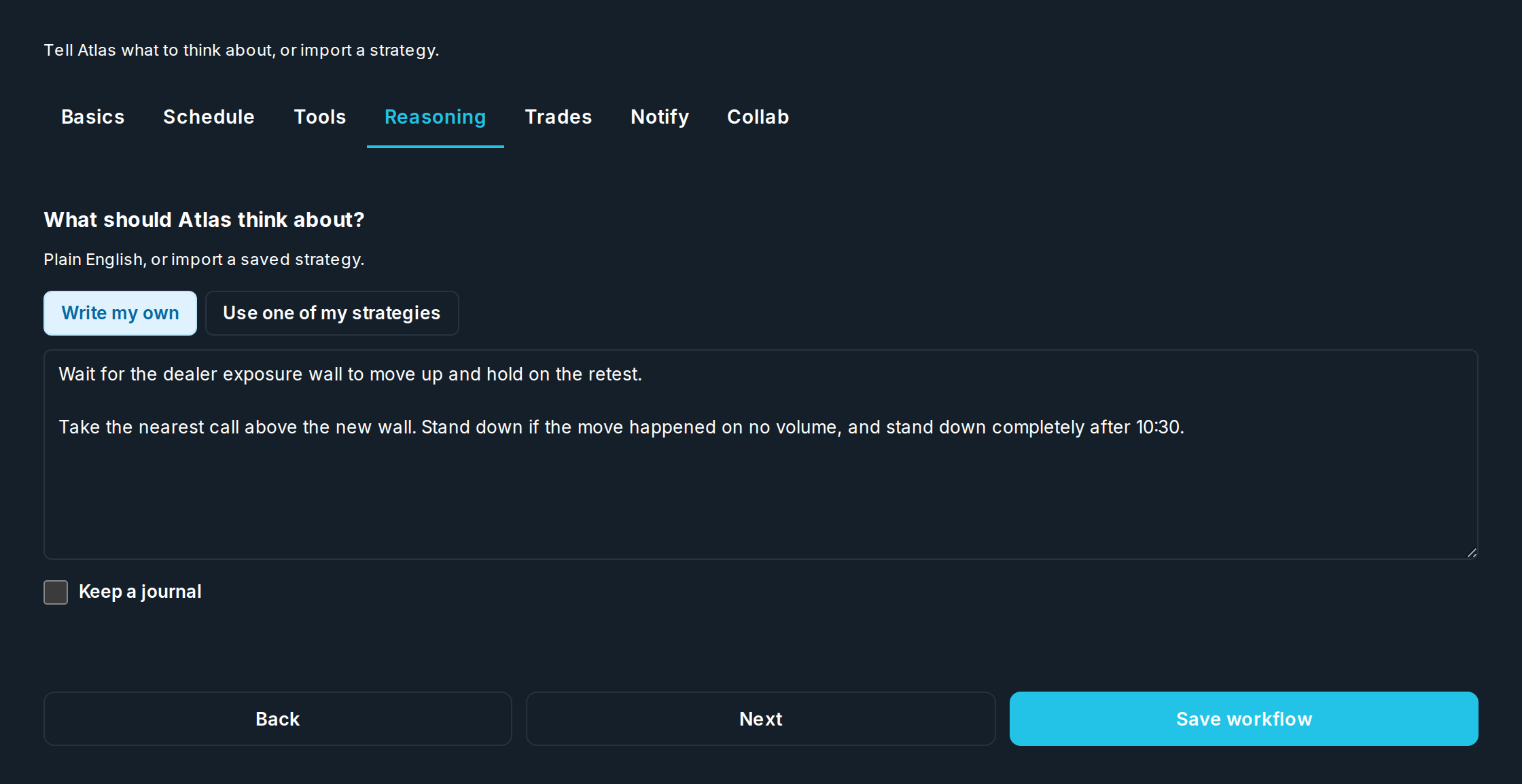
Write the rules, the plan in your own words that Atlas follows every run. You can also point it at a strategy and set how hard it thinks.
Trades: what it trades
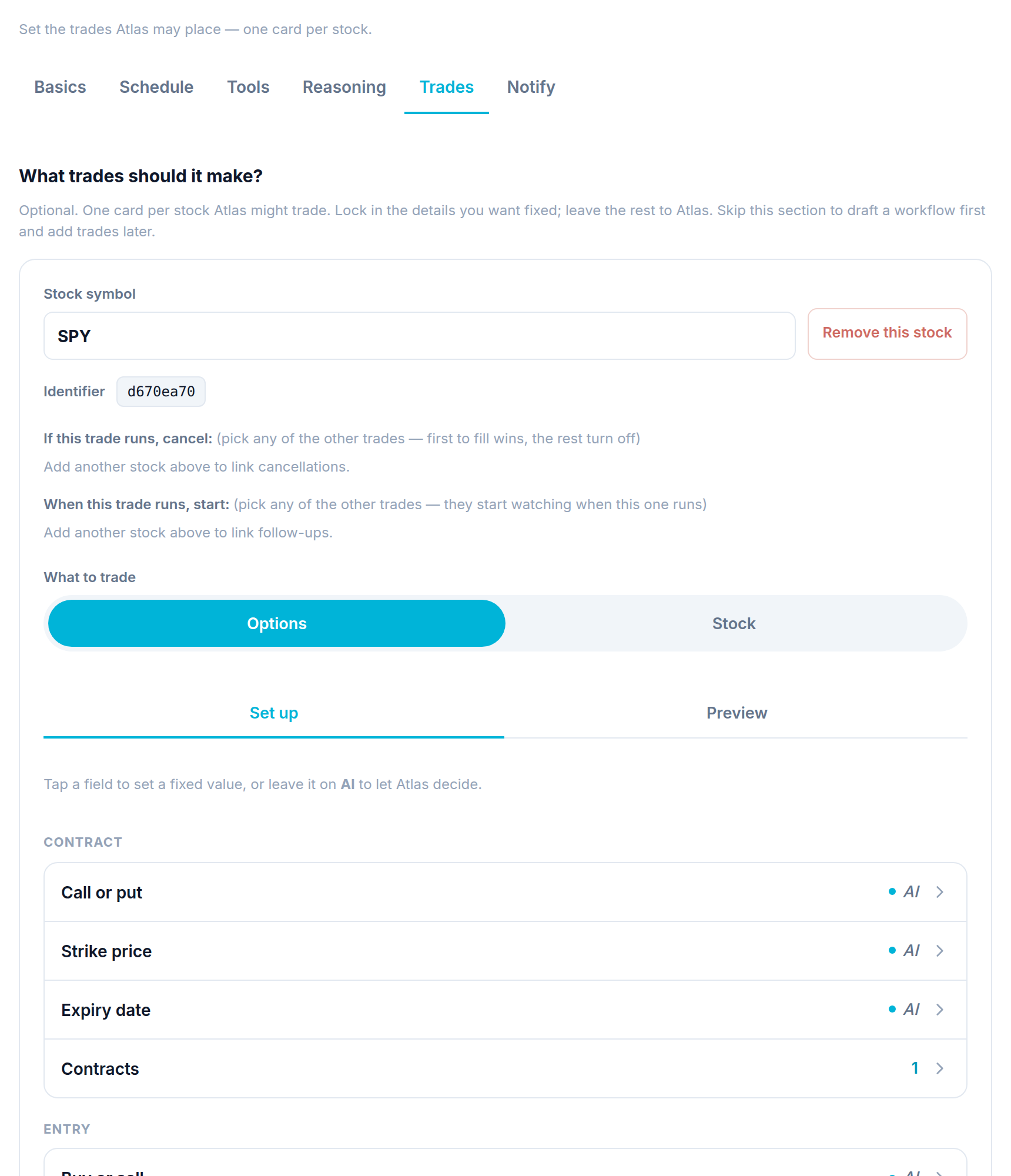
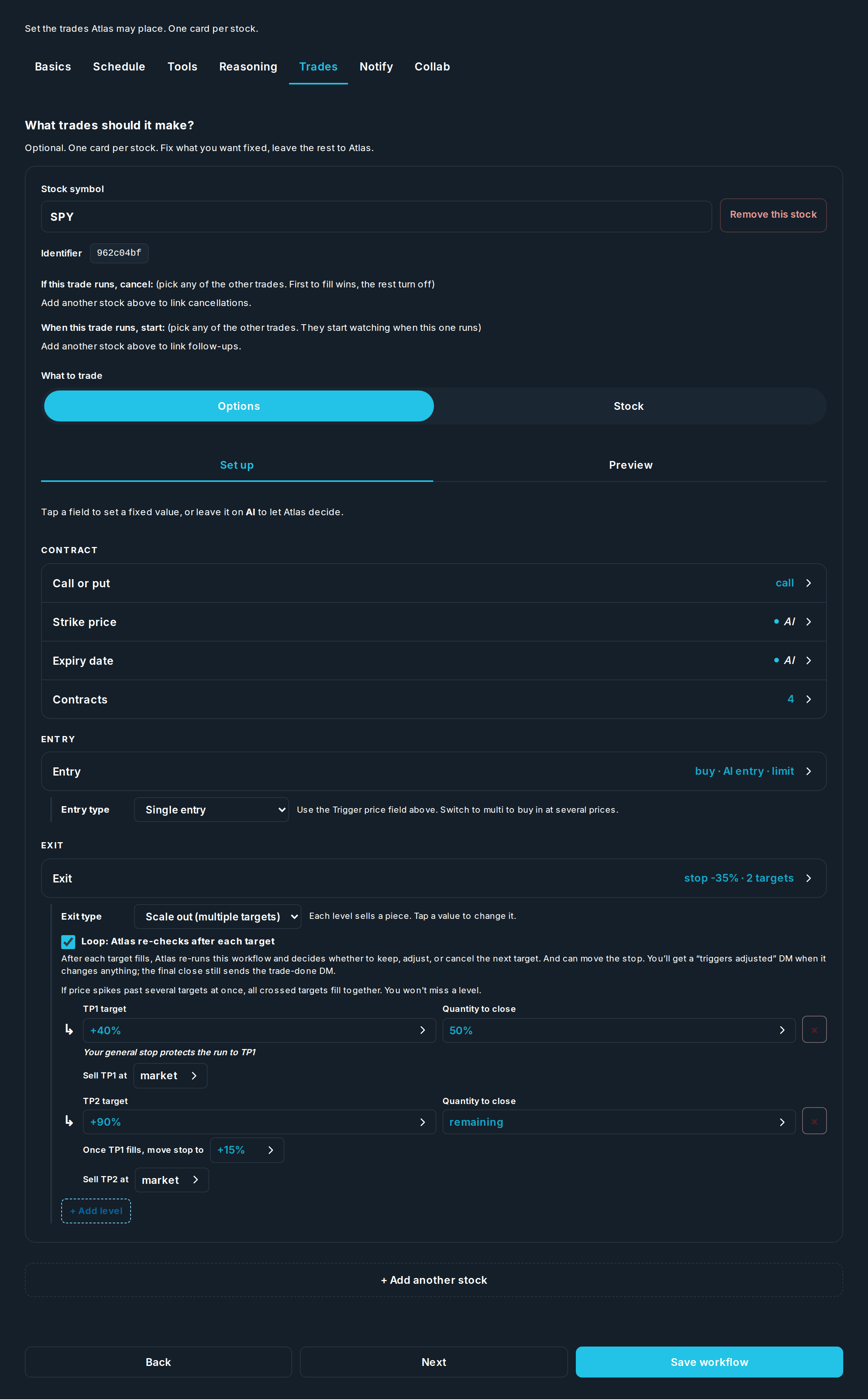
One card per stock Atlas might trade. Lock in what you want fixed and let Atlas pick the rest (each field is set to AI by default. Tap to set a fixed value):
| Group | Fields |
|---|---|
| What to trade | Stock symbol, Options or Stock. |
| Contract | Call or put, strike, expiry, number of contracts. Each can be AI or fixed. |
| Entry | One buy or several, order type, price to enter. |
| Exit | How to exit, stop loss, and a single take profit or a scale out ladder. |
On a copy, the size and the stop loss and take profit are yours. You can change them and stay linked. Change the rules, the tools, or the core exit and the copy becomes your own.
Notify: how it tells you
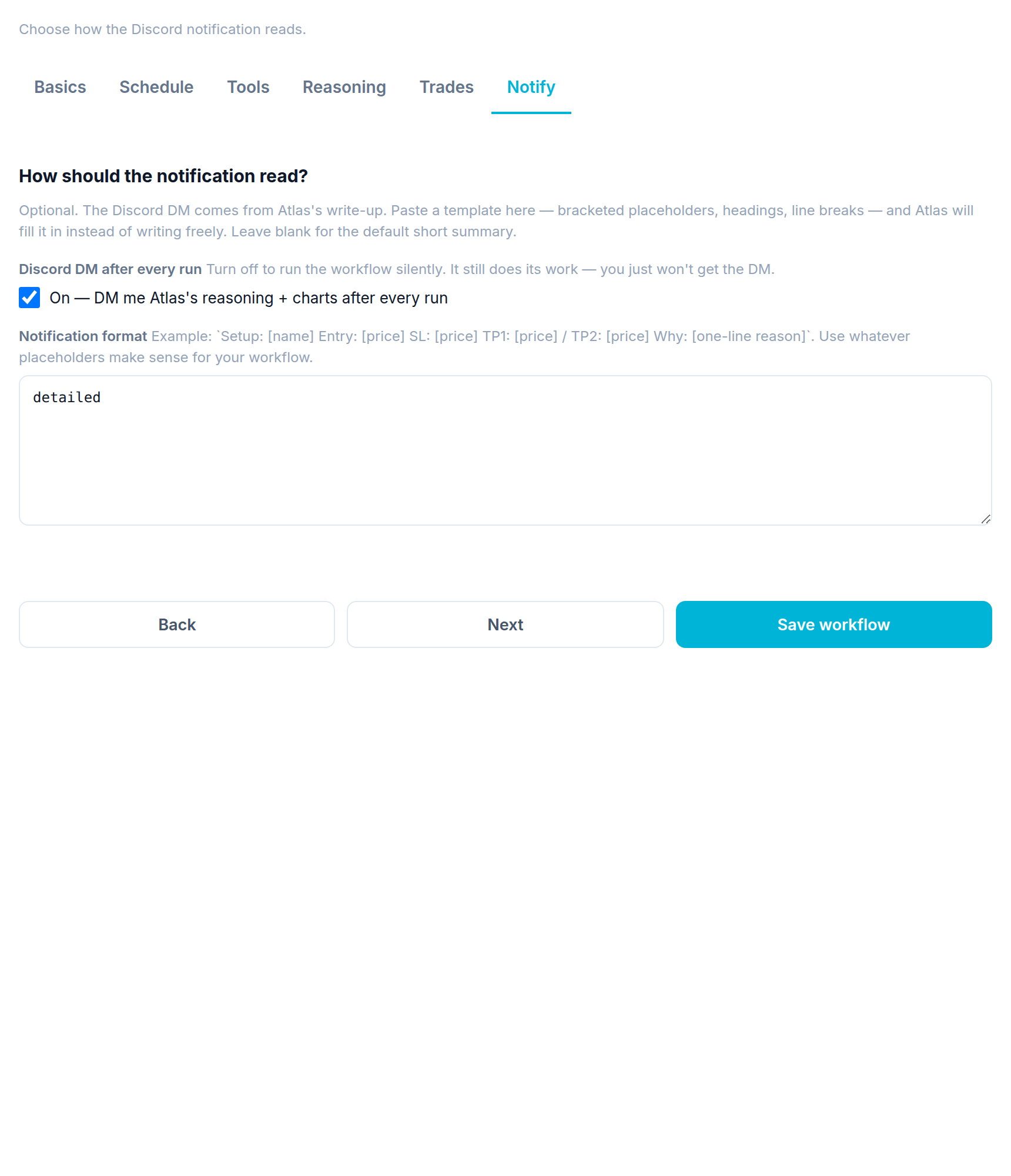
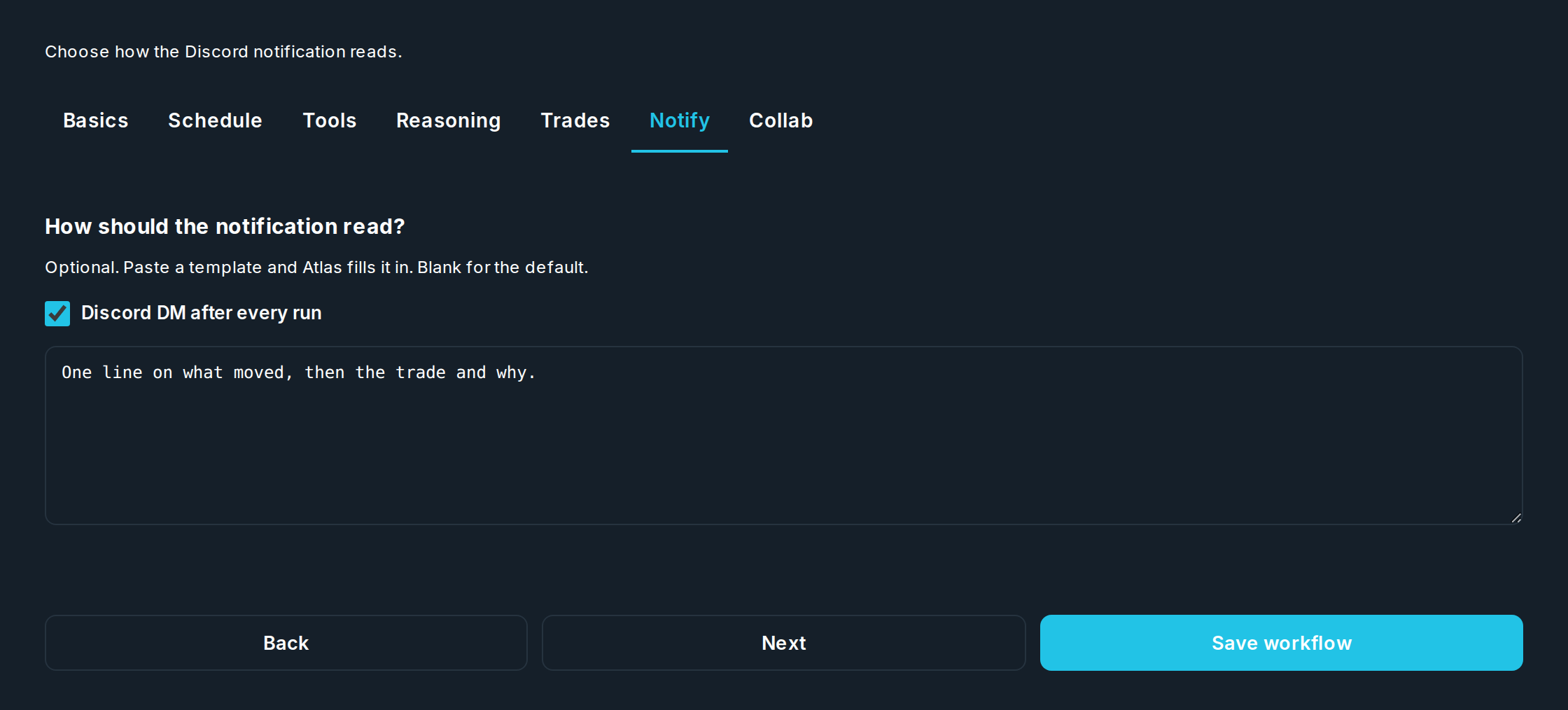
Turn on a Discord message after every run and pick how it reads. Order messages show the entry and exit prices, why it exited (stopped out, take profit, AI exit, or time), and the profit or loss.