Using the dashboard
Connect: brokers and connectors
The Connect tab has two parts: Brokerages and Connectors.
To add Atlas to ChatGPT, Claude or Discord instead, see Connect Atlas.
Brokerages
Connect a Brokerage links a broker account so Atlas can trade in it. You sign in on your broker's own page. Atlas never sees your broker password.
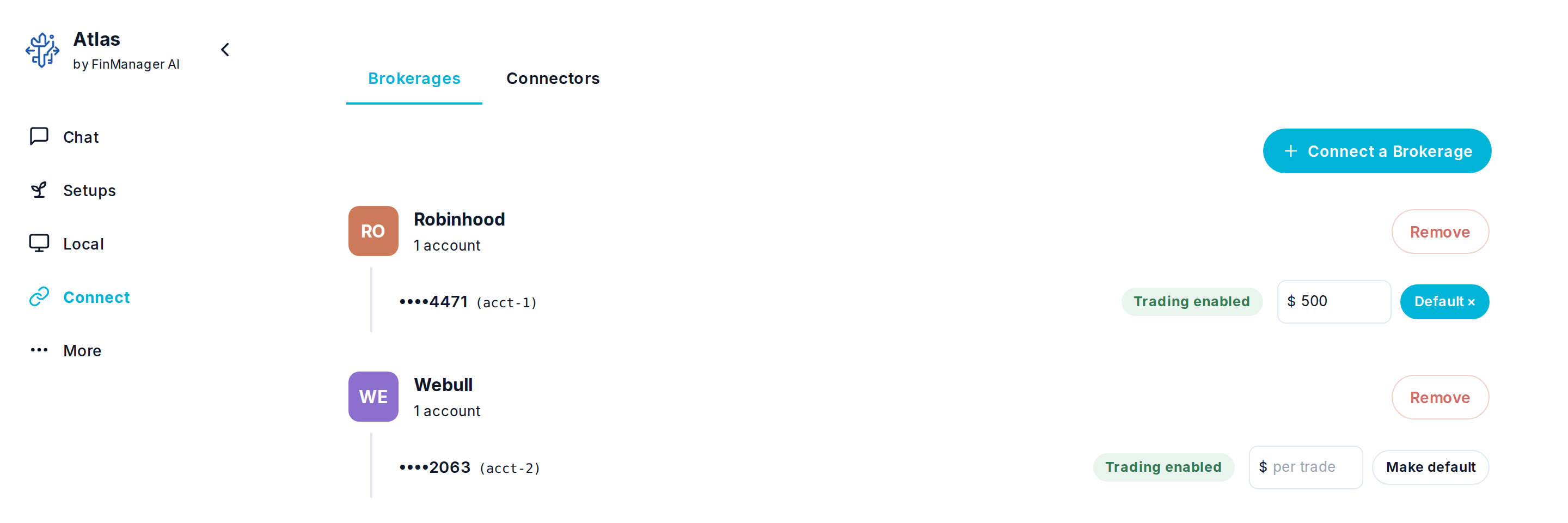
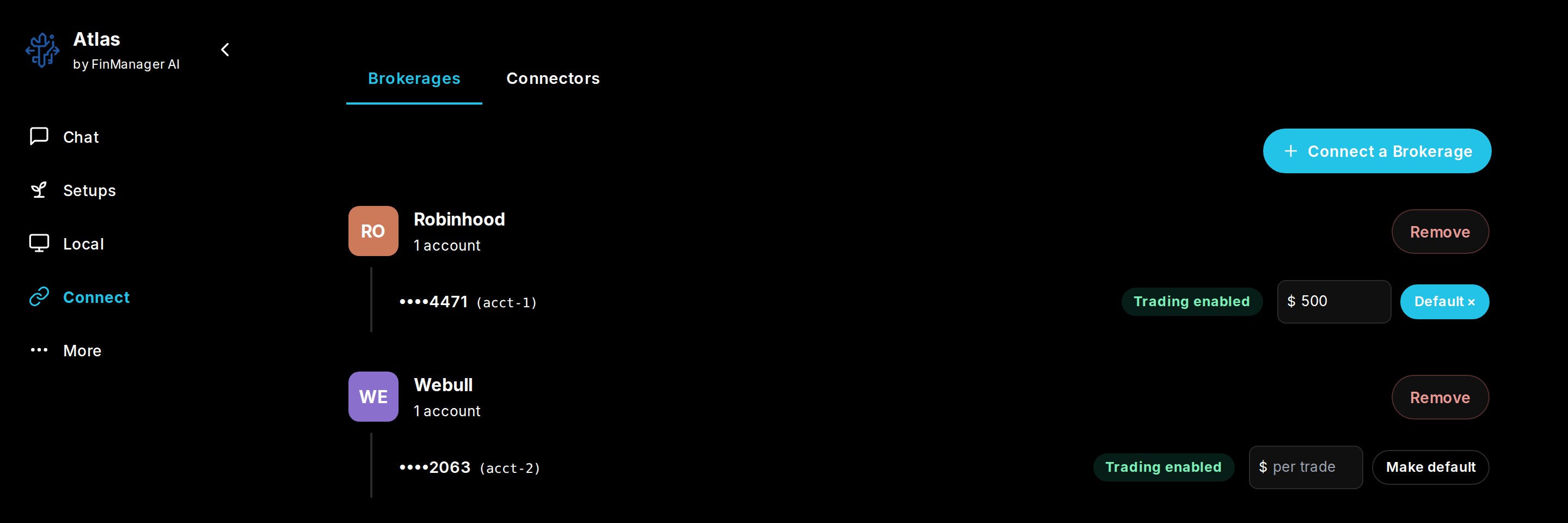
Each connected account shows whether it can trade or only be read. On an account that can trade:
| Control | What it does |
|---|---|
| Make default | New workflows, triggers and plays go to this account unless you choose another. Press it again (Default ×) to have no default. |
| $ per trade | The most one trade may spend in this account. It is filled in for any workflow, trade or play on the account. Leave it empty to set the size yourself each time. |
| Remove | Disconnects the broker. If it still has open trades Atlas warns you first, then removes the trades, workflows and defaults that used it. Positions at your broker are not closed. |
Connectors
A connector links Atlas to another service's own tools. Press + Add a connector, give it a name and its address, and choose how it signs in: by signing in on that service's page, or with a key.
| Button | What it does |
|---|---|
| View tools | See everything Atlas can do with it. |
| Refresh tools | Check again for what it can do. |
| Sign out | Disconnect it for now. |
| Delete | Remove it completely. |
Once connected, its tools can be used in chat and picked in a workflow's Input data and Output steps.
Need help? Email accesspoint@finmanagerai.com.