Connect Atlas
Add Atlas to Claude

Add Atlas to Claude. It takes about 2 minutes.
Step 1. Open Settings
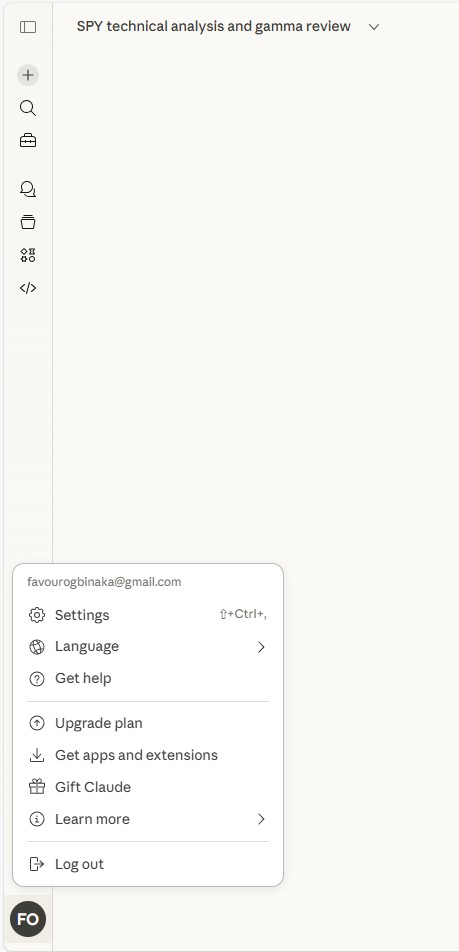
Click your profile picture in the bottom left of Claude, then click Settings.
Step 2. Go to Connectors
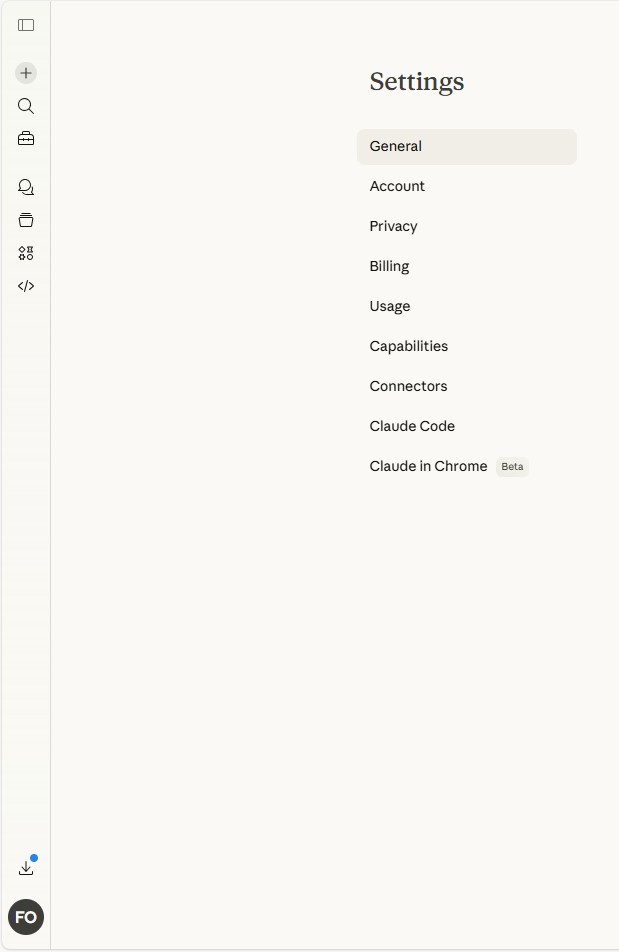
In Settings, click Connectors on the left.
Step 3. Add a connector
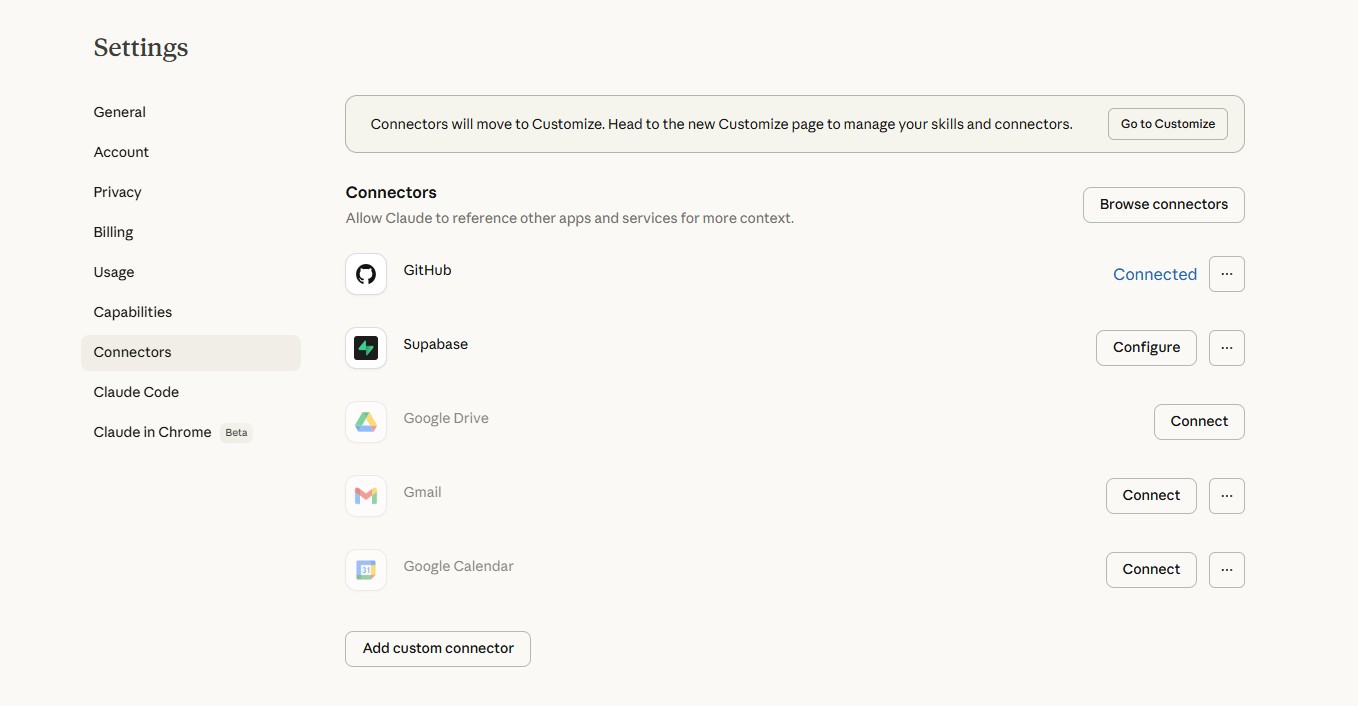
At the bottom, click Add custom connector.
Step 4. Fill in Atlas
Type these in and click Add:
- Name: Atlas
- Link:
https://atlasmcp.finmanagerai.com/mcp
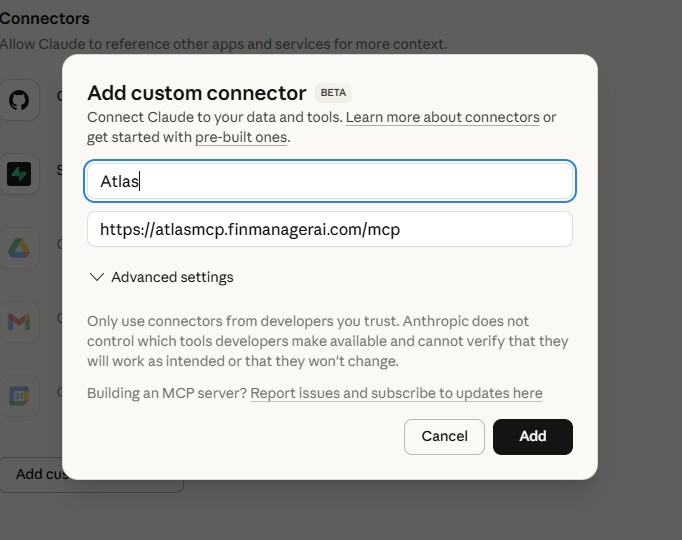
Step 5. Sign in to Atlas
It sends you to the Atlas sign in page. Sign in with Email, Google, or Discord.
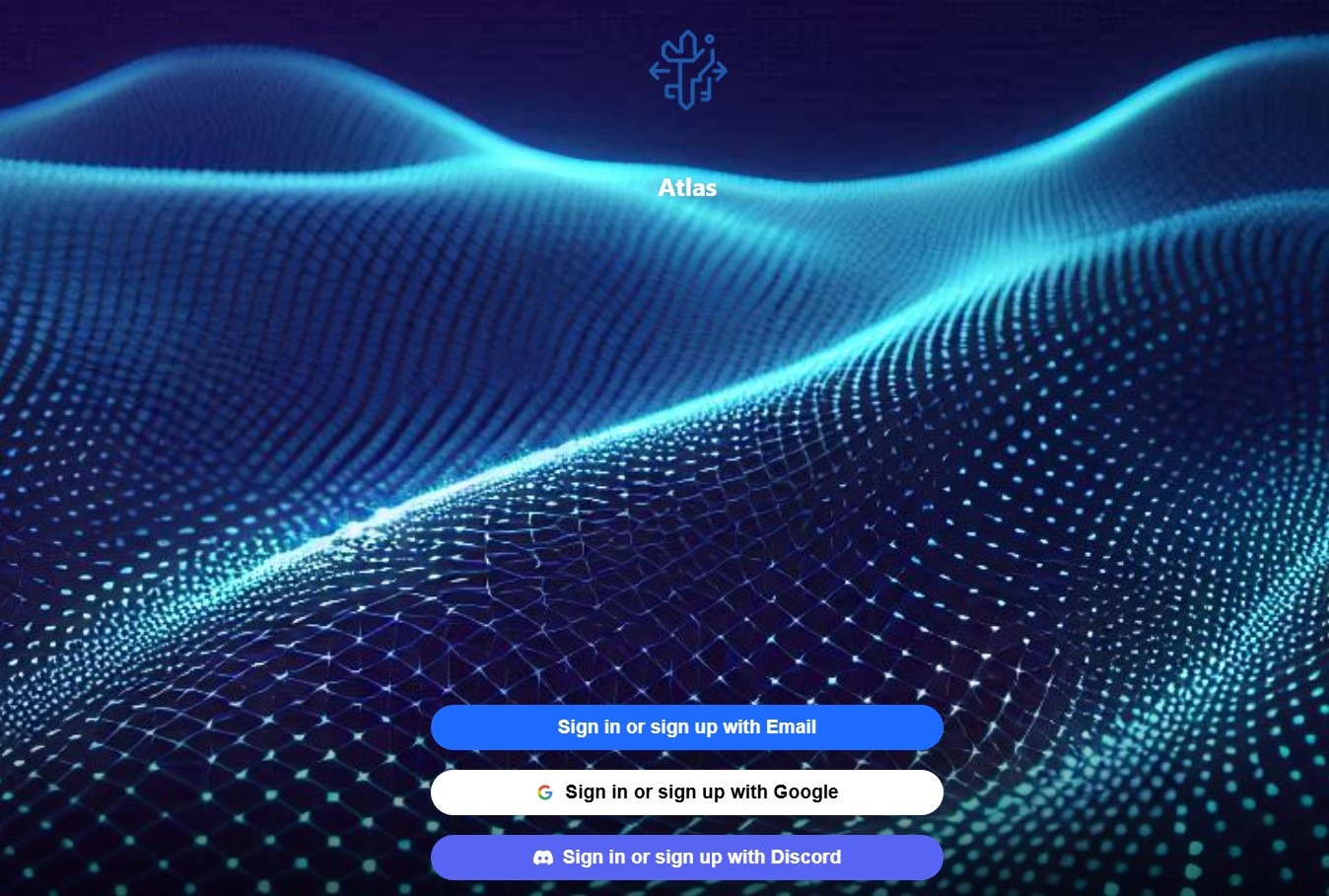
Step 6. Say yes
Click Connect to Atlas, agree, and click Authorize.
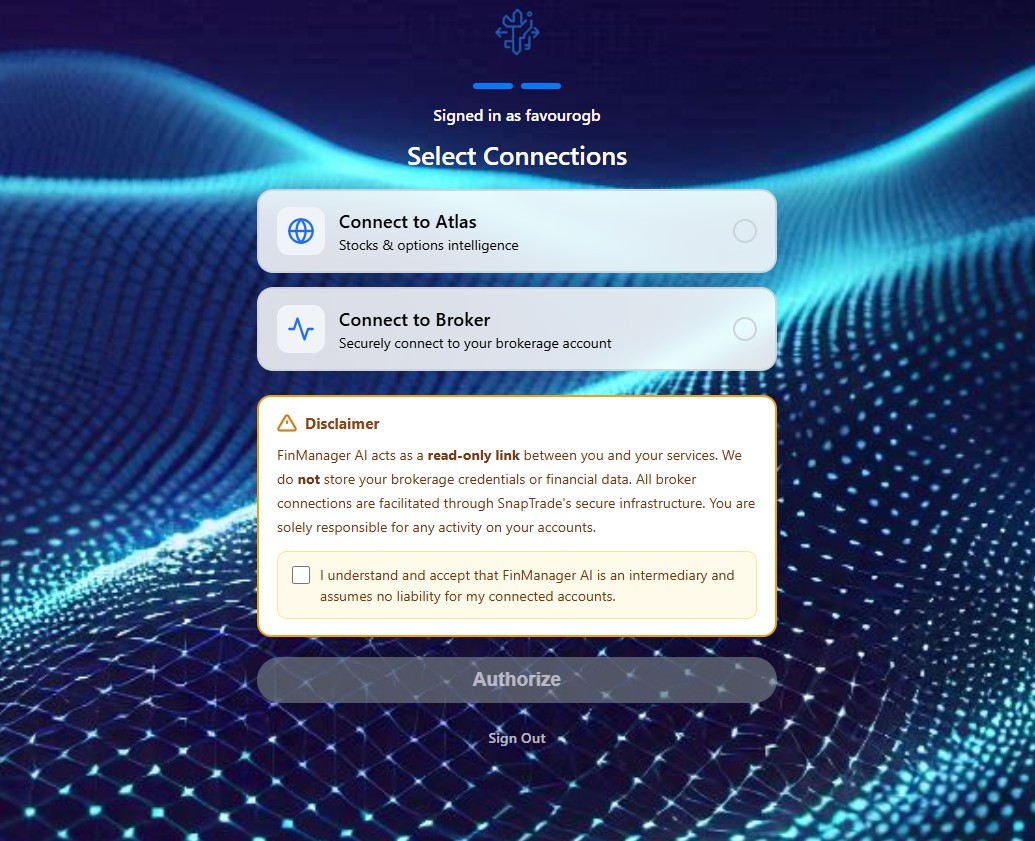
Step 7. Connect
Atlas shows up as a connector. Click Connect.

Step 8. Check it worked
When it is on, you see Configure instead of Connect.

Step 9. Set what it can do
Click Configure to look at the Atlas tools and set what they can do.
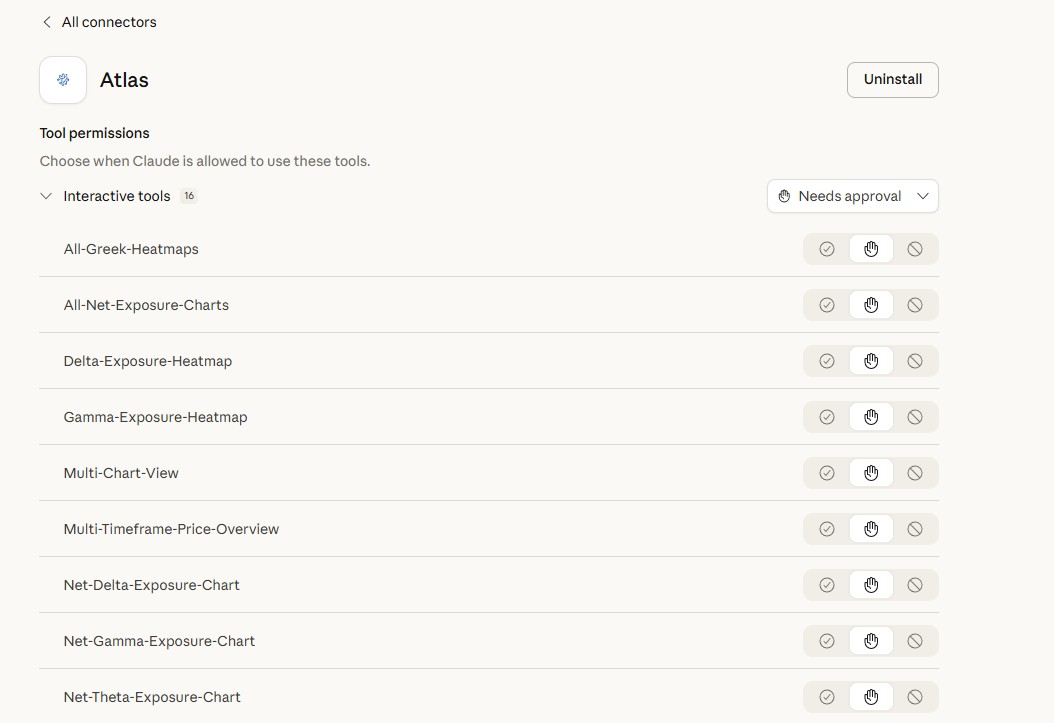
Step 10. Turn it on in chat
In a new chat, click the + button, go to Connectors, and turn Atlas on.
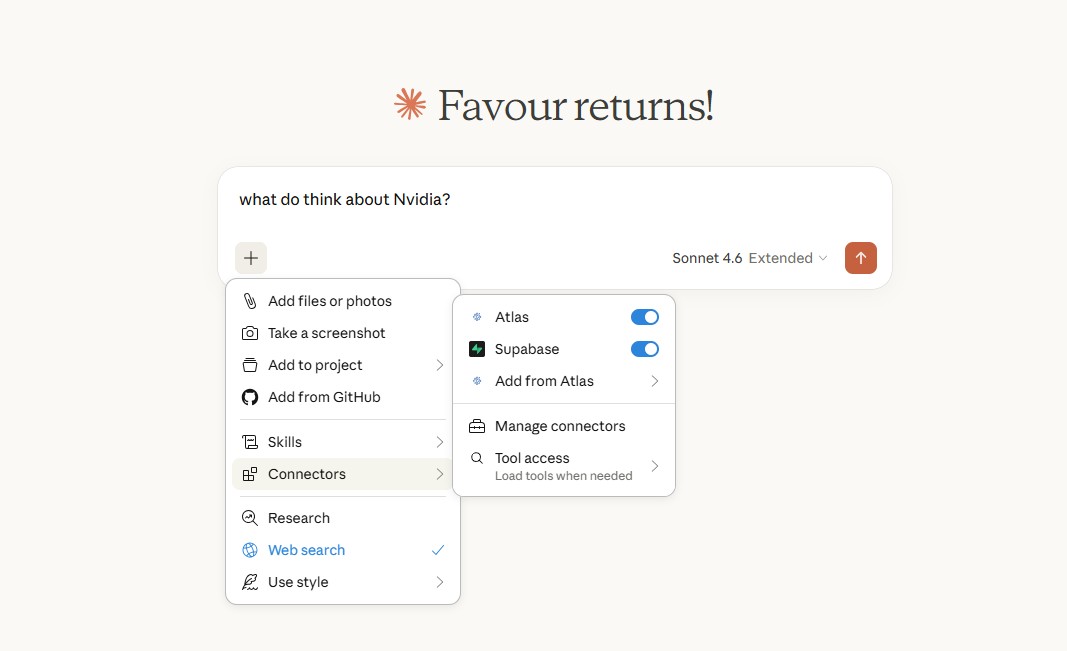
Step 11. Ask away
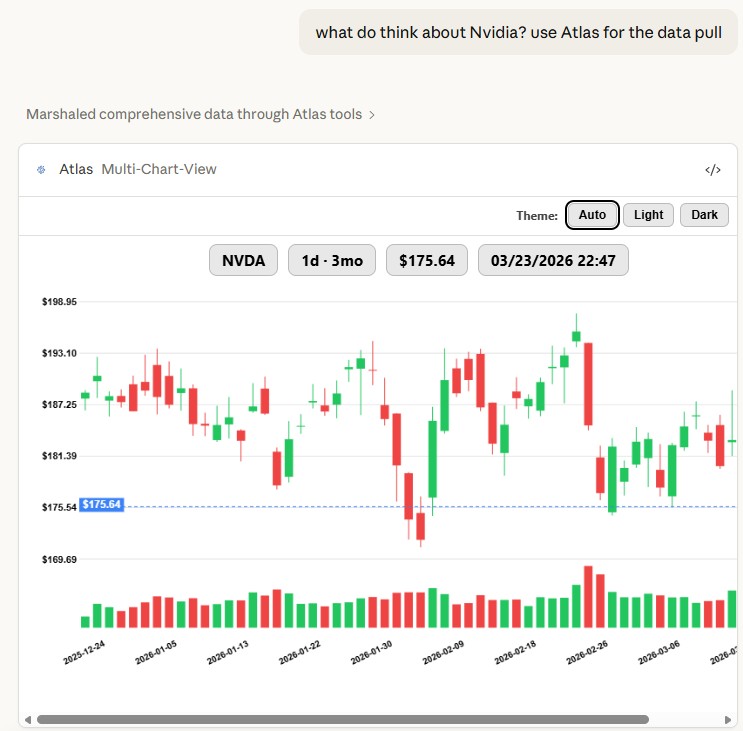
Ask Claude anything with Atlas on: quotes, company numbers, charts, options, and live market data.