On the web, open chatgpt.com/plugins. You do not need to turn on Developer mode.
Click the + button, then Add custom MCP server.
Type these in:
- Name: Atlas
- Description: Stocks and Options
- Server URL (under Connection):
https://atlasmcp.finmanagerai.com/mcp - Authentication: OAuth
Read the warning, click I understand and want to continue, then click Create as a plugin.
ChatGPT shows the Atlas tools it found. Install it, and when ChatGPT sends you to the Atlas sign in page: Sign in with Email, Apple, Google, or Discord, click Connect to Atlas, agree, and click Authorize.
In a new chat, type @ and pick Atlas.
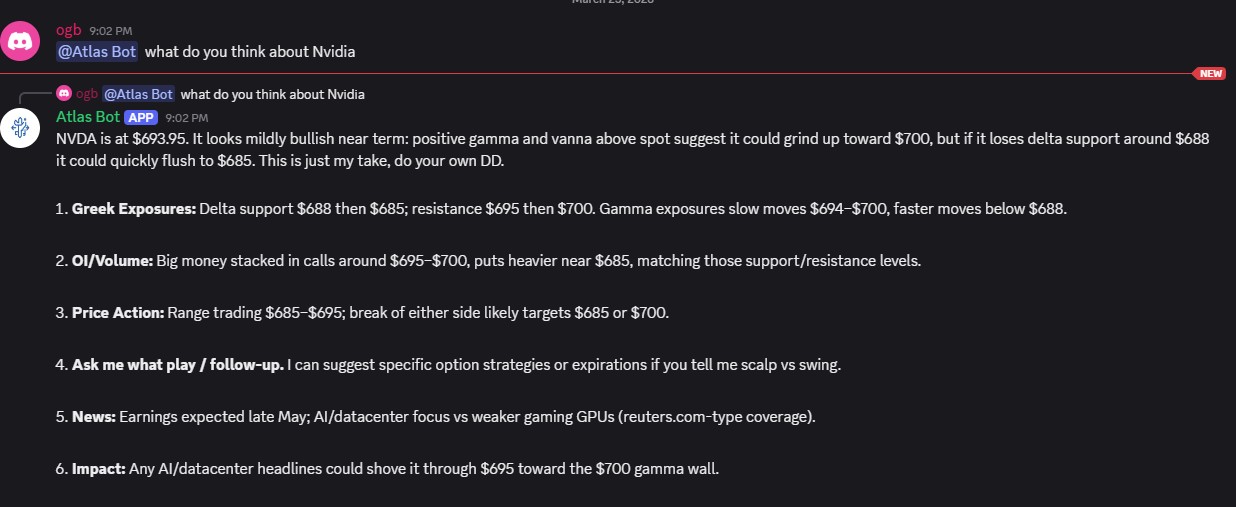
Ask Atlas anything: live quotes, company numbers, options flow, and more.
No Add custom MCP server? Your ChatGPT plan or your workspace does not allow your own servers yet. On a work account, your admin turns it on.
On the web at claude.ai or in the desktop app, go to Customize, then Connectors.
Click + Add, then Add custom connector.
Type these in and click Continue:
- Name: Atlas
- Remote MCP server URL:
https://atlasmcp.finmanagerai.com/mcp
If the box shows Advanced settings on the same screen instead, leave them empty and click Add.
Claude shows how Atlas signs in. Keep what it chose and click Add.
Claude sends you to the Atlas sign in page (if it does not, click Connect beside Atlas). Sign in with Email, Apple, Google, or Discord, click Connect to Atlas, agree, and click Authorize.
In a chat, click the + button, go to Connectors, and turn Atlas on.
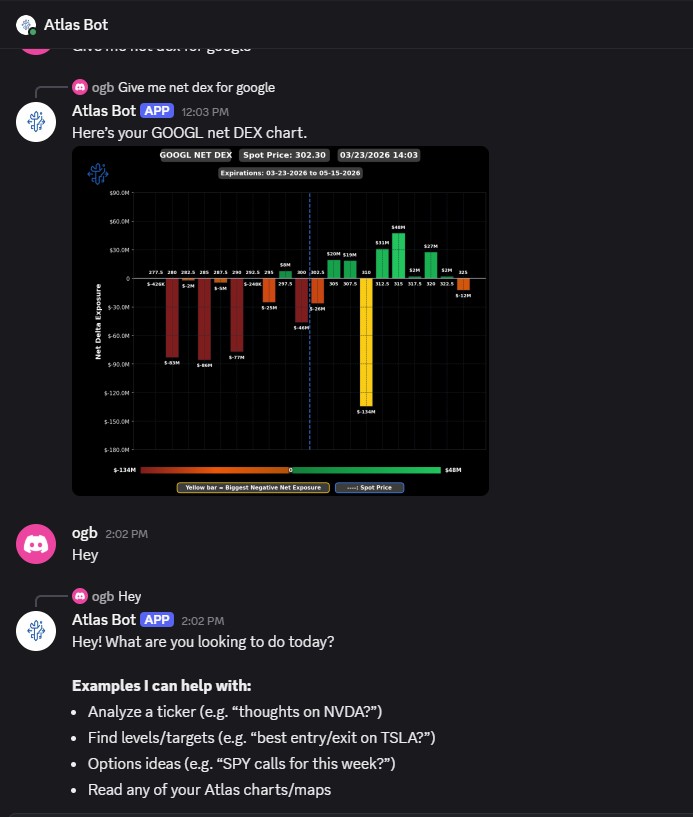
Ask Claude anything with Atlas on: quotes, company numbers, charts, options, and live market data.
On a Team or Enterprise plan, an owner adds Atlas once in Organization settings, then Connectors; then each person clicks Connect beside it in Customize, then Connectors. The free plan allows one custom connector.
We never store your broker sign-in, and you are responsible for all activity on your account.
 Atlas
AtlasWhat setup do you want?
Workflow runs for you · Alert messages you · Trigger trades at your price · Strategy analyzesPast performance does not guarantee future results.
For the REST API, the CLI or an MCP client. Treat it like a password.